
Five new Corona Tutorials

Volumetric fog, saving render elements, panorama exporter, environment HDRI lighting and more...

Corona Renderer shadowcatcher tutorial

Ludvík Koutný quick tutorial on shadow catcher in Corona.
Covered topics: basic setup with HDRI and backplate, composition both inside and outside render.
Speed 3D Interior Decorating in Unreal Engine 4

Maverick decorates interior using Evermotion Unreal Bundle.
You can download Unreal Engine Bundle from Evermotion Shop.
Unreal Engine 4 Rotate a Texture in Material Editor

This tutorial explains how to rotate a texture in the Material Editor of Unreal Engine 4.

Architectural Visualization in Unreal Engine 4

Read community guide hosted by Collider Visuals.
Unreal Engine 4 in Archviz in action:
Unreal Engine 4 for ArchViz tutorial

Create interactive architecture visualizations in Unreal Engine 4.
This tutorial was brought to you by UE4Arch: http://ue4arch.com.
Introducing Unreal Engine 4 for Archviz
In the architecture visualization world we always seek to achieve a result close to reality to provide our customers the feeling of seeing the finished project. But generally we are limited to still images and videos of these environments. What if we could enter the rooms, open the doors, walk on it, turn on and off lights, change the decor and still maintain photorealism?
In the architecture visualization world we always seek to achieve a result close to reality to provide our customers the feeling of seeing the finished project. But generally we are limited to still images and videos of these environments. What if we could enter the rooms, open the doors, walk on it, turn on and off lights, change the decor and still maintain photorealism?
Example of a interior walkthrough:
Example of exterior navigation:
That’s where Unreal Engine 4 enters. UE4 was recently launched in March 2014 by Epic Games as a powerful tool for creating games. However, it is an application that can be very effective for architectural visualization. It still has some graphic limitations compared to conventional renders as V-Ray and Corona, but that does not prevent you from getting incredibly realistic results in real time.
Click on image to enlarge 
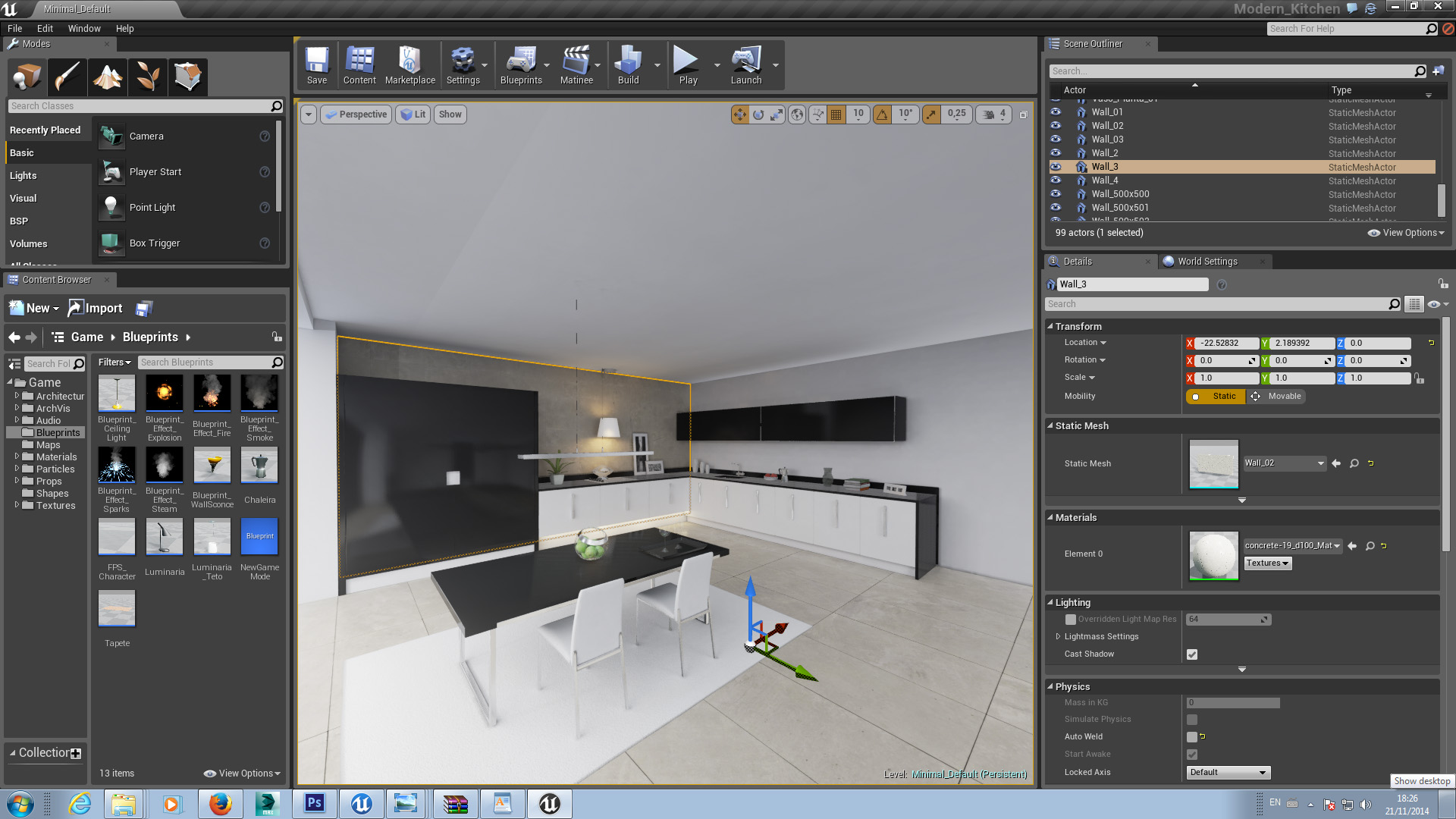
Kitchen visualization in Unreal Engine 4
The Blueprint system for interactive archviz
In addition to the powerful graphics render, UE4 has a visual scripting system (called Blueprints) where you can create multiple interactions without writing a line of code. With the Blueprints system, you can perform actions such as lighting on/off switch, open and close doors, change object’s color and material, replace models in real time, change the time of the day, create defined camera tours and much more: the limit is your imagination. It is also possible to work with particles to create extremely realistic effects like fire, smoke and water. Resuming: it’s a games creation software that can work perfectly for architecture and allows you to give life to your project with the possibility to navigate and interact with it in real time; and you can still do all this with a graphic quality comparabled with other 3D renders.
In addition to the powerful graphics render, UE4 has a visual scripting system (called Blueprints) where you can create multiple interactions without writing a line of code. With the Blueprints system, you can perform actions such as lighting on/off switch, open and close doors, change object’s color and material, replace models in real time, change the time of the day, create defined camera tours and much more: the limit is your imagination. It is also possible to work with particles to create extremely realistic effects like fire, smoke and water. Resuming: it’s a games creation software that can work perfectly for architecture and allows you to give life to your project with the possibility to navigate and interact with it in real time; and you can still do all this with a graphic quality comparabled with other 3D renders.
Indirect Lighting in UE4
Indirect lighting is another strong point of UE4. The engine has an improved lighting system where you can reach a similar workflow to V-Ray using a skylight to simulate the lighting coming from the sky and a directional light to simulate the sun. Sometimes it is also recommended to use spotlights (which work in a similar way of V-Ray light planes) at some points to get better lighting.
Indirect lighting is another strong point of UE4. The engine has an improved lighting system where you can reach a similar workflow to V-Ray using a skylight to simulate the lighting coming from the sky and a directional light to simulate the sun. Sometimes it is also recommended to use spotlights (which work in a similar way of V-Ray light planes) at some points to get better lighting.
What do I need to start?
- First of all you need a good computer to run UE4 software. The recommended hardware by Epic Games is a Quad-Core processor 2.5Ghz or faster, 8GB of RAM and at least a GeForce GTX470 or AMD Radeon 6870HD Series, but we do recommend a better setup if you are planning to really work with UE4.
- The second thing you need is an Unreal Engine 4 subscription. You can sign up and find more details on their website. The workflow to create an architectural project inside UE4 is based on modeling and texturing assets in a 3D software (3dsMax, May or other), import in UE4 and then set the scene. So, you will need a prepared model or a 3D software to create your model.
With this setup you are ready to start. Other applications may be needed for your project and i will talk about them later.
In this article I will explain the process to create a basic interior scene, but also i do recommend you to read the documentation on the official UE4 website. In this documentation you can learn basic stuff and get used to the software interface.
Preparing the assets in 3dsMax.
I will use 3dsMax to start my project, first modeling the static objects of architecture: floor, wal'ls, ceiling, etc. It is important to rename each object as they will be exported separately.
I will use 3dsMax to start my project, first modeling the static objects of architecture: floor, wal'ls, ceiling, etc. It is important to rename each object as they will be exported separately.
Texturing in 3ds Max
After modeling you should start the texturing process. All assets that will be prepared for UE4 should have open meshes and no overlapping faces. Then an extra UV channel should be created. The reason for this extra UV channel is because UE4 will use channel 1 as diffuse object texturing and channel 2 to bake the lightning map. If the faces are overlapping the lightmap will cause artifacts and will fail. In 3dsMax we can use the flatten-mapping method to open the mesh in primitive objects. This method works very well and is fast for this case. For more complex objects such as furniture, you should use other methods such as pelt mapping.
After modeling you should start the texturing process. All assets that will be prepared for UE4 should have open meshes and no overlapping faces. Then an extra UV channel should be created. The reason for this extra UV channel is because UE4 will use channel 1 as diffuse object texturing and channel 2 to bake the lightning map. If the faces are overlapping the lightmap will cause artifacts and will fail. In 3dsMax we can use the flatten-mapping method to open the mesh in primitive objects. This method works very well and is fast for this case. For more complex objects such as furniture, you should use other methods such as pelt mapping.
Exporting 3dsMax models to Unreal Engine 4
After you set the static objects, i recommend to export each object with their proper names. To export the models to Unreal Engine 4 you should use the FBX format.
After you set the static objects, i recommend to export each object with their proper names. To export the models to Unreal Engine 4 you should use the FBX format.
Importing 3dsMax models to Unreal Engine 4
You can follow the tutorial from Epic official documentation below:
You can follow the tutorial from Epic official documentation below:
- Click the NEW button in the Content Browser and choose Import. Navigate to and select the FBX file you want to import in the file browser opens que. Note: You may want to select FBX static meshes (*.fbx) in the dropdown to filter unwanted files
- The imported path of the imported asset depends on the current location of the Content Browser while importing. Make sure to navigate to the folder Appropriate prior to performing the import. You may also drag the imported assets into the new folder once import is complete.
- Choose the Appropriate settings in the Import dialog. The defaults should be sufficient in most cases. See theFBX Import Dialog section for complete details of all of the settings.
- Click the button IMPORT to import the mesh (es). The Resulting mesh, material (s), and texture (s) will be displayed in the Content Browser if the process was successful.
- Although textures and materials can be imported with a static mesh, only Color and Normal will automatically be connected (assuming the supported equipment was used in Max / Maya), Specular maps will be imported but not connected, other maps, like Ambient Occlusion map in the Diffuse slot of the Mayan material, would not be even imported; it is best to check your materials and connect any unconnected maps and check which maps did not import.
- Simply double-click the new equipment and connect the available textures into Their Appropriate inputs. By viewing the imported mesh in the Static Mesh Editor and enabling the display of collision, you can determine that the process worked as expected. Alternatively, you can just click and drag an FBX file from Windows into the Content Browser and it will bring up the import dialog for you.The import steps list is from the official Epic Unreal Engine documentation.
- It is important to organize your content browser folders with the correct names. In this case we use the name Static Architecture for our static objects.
- After importing the files to the content browser go up to the top viewport and drag all models at once (use CTRL to select more than one object). This way you can import all objects to the scene in the correct position created on 3ds Max.
- After setting up the first part of the scene in UE4, you should import other assets like doors, furniture, adornment, etc. For these assets we should align their pivot point to 0. This is because Unreal Engine recognizes the pivotal point in 0 and if your object was imported away from the origin, you will have difficult to handle it in UE4.
- The next thing after importing the assets is to relocate them into the scene: within the Content Browser (Ctrl + E), we will adjust some settings for each object. In Lightmap Size option will be set the lightmap size of each object. The higher this value is, the longer is the lighting calculation time as well as the shadows, so I recommend using a value of 1024x1024 for extended objects (walls, floors, ceilings etc) and values between 128x128 to 512x512 for smaller objects (adornment, furniture etc). In this window we can also see the number of textures channels and view the UV mesh.
Click on image to enlarge 
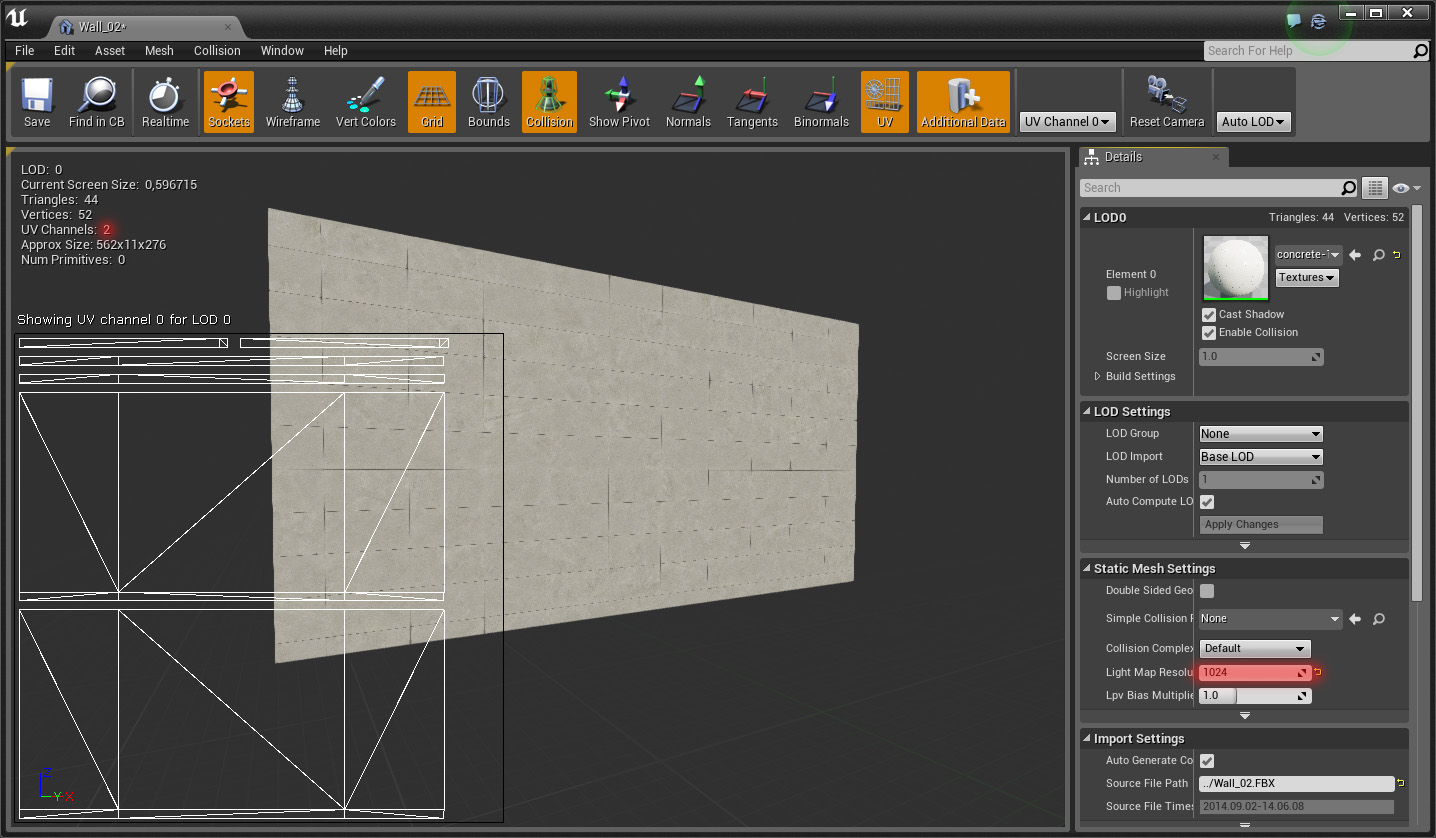
Content browser
Setting up materials in Unreal Engine 4
When the materials window is opened, you will use similar concepts to conventional renders to represent the desired materials. You should use the Nodes concept, which will link parameters as Textures, Texture coordinates, normal maps, etc.
When the materials window is opened, you will use similar concepts to conventional renders to represent the desired materials. You should use the Nodes concept, which will link parameters as Textures, Texture coordinates, normal maps, etc.
Click on image to enlarge 

Material nodes
When importing a texture to UE4, we can drag it into the materials window and connect to the Diffuse parameter. We will do this for parameters such as specular, reflection and normal. I will not go further into the creation of realistic materials within UE4, but you can see good examples in our complete projects. Also there will be a video course about these in the near future.
To create normal maps into your textures I recommend using a Photoshop plugin from nVidia "NormalMapFilter".
Setting up the Lighting in Unreal Engine 4
Click on image to enlarge 
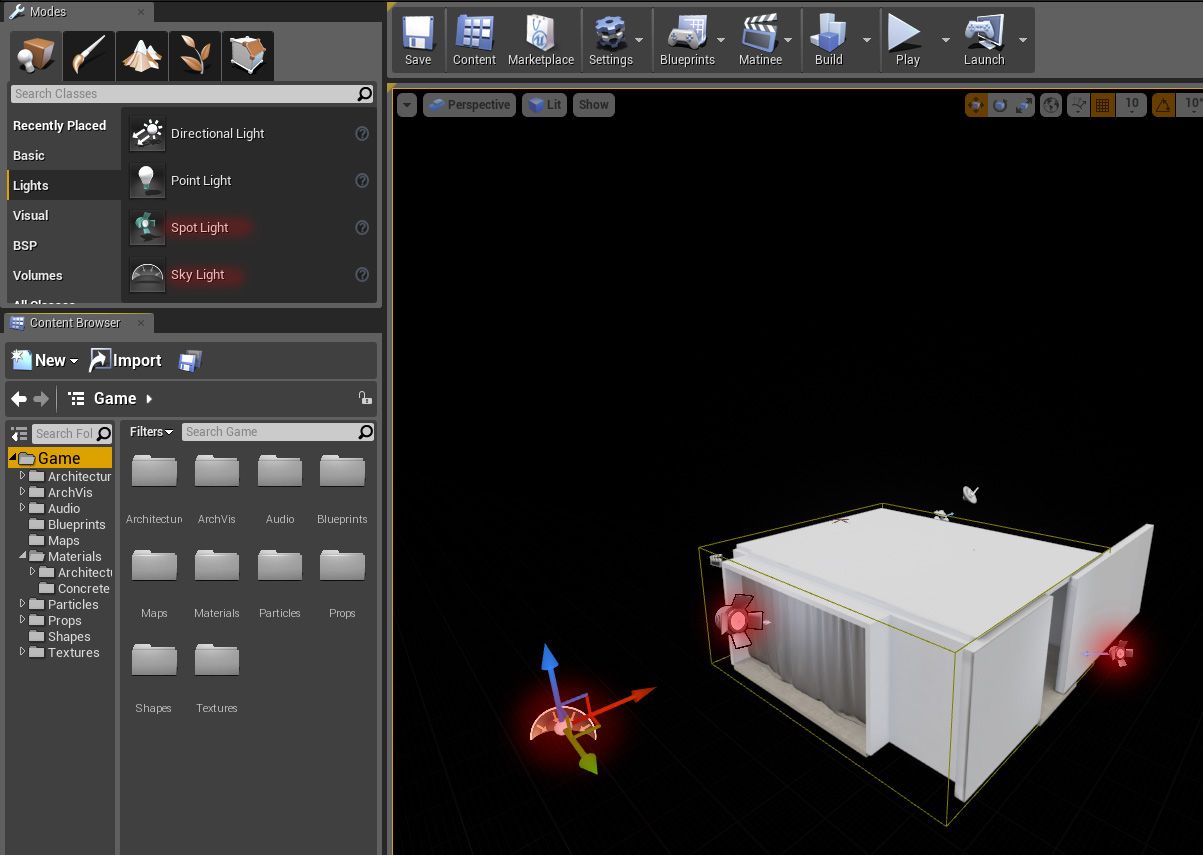
Placing lights
To begin this part, I recommend start testing the lighting only with part of the static architecture (walls, floor and ceiling): this way the lighting test time is reduced and when we insert the furniture, the lighting will be very polished.
Click on image to enlarge 
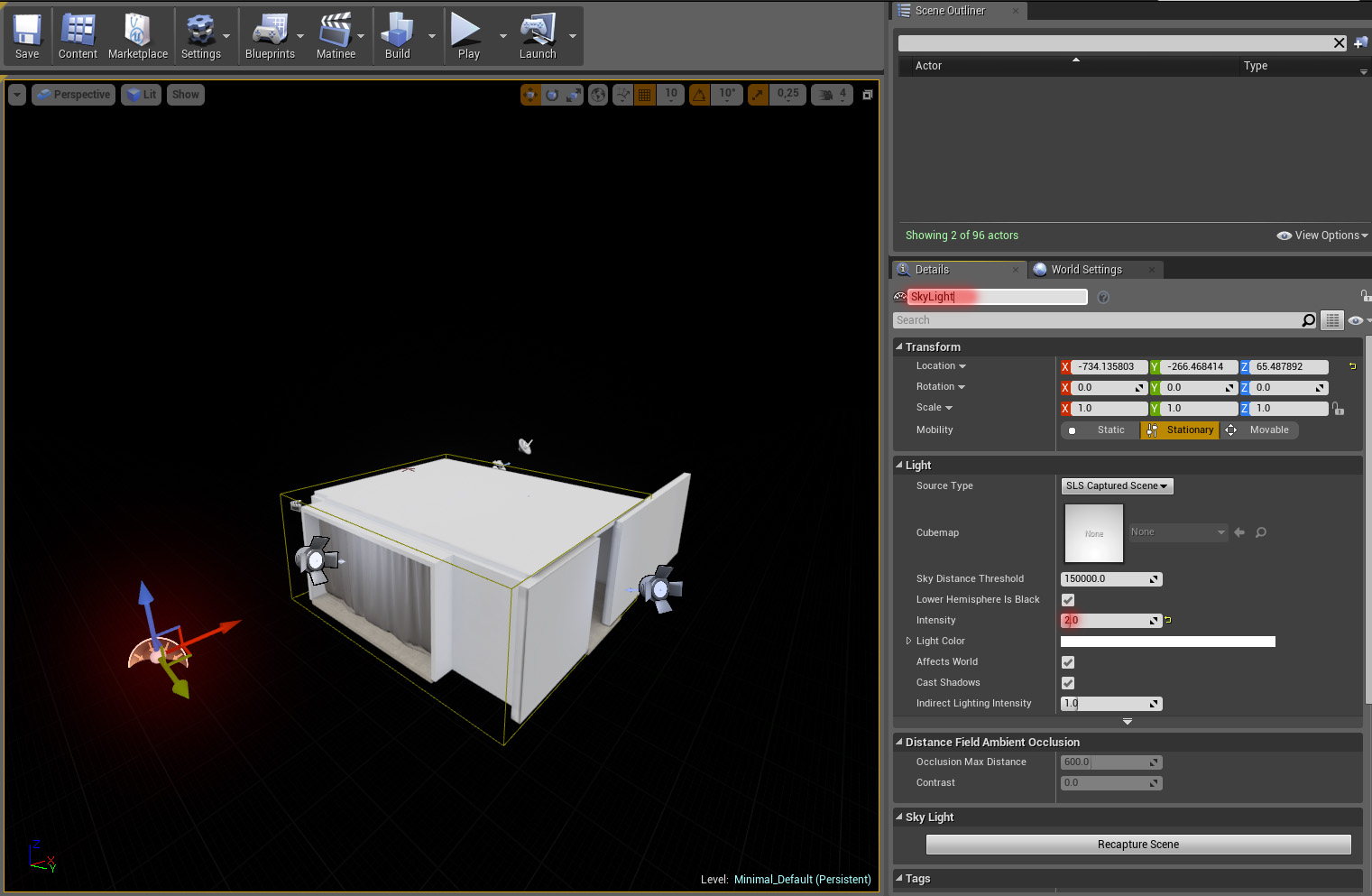
First insert a Skylight and start testing the intensity value. I suggest not to exaggerate this value to more than 2.
Click on image to enlarge 
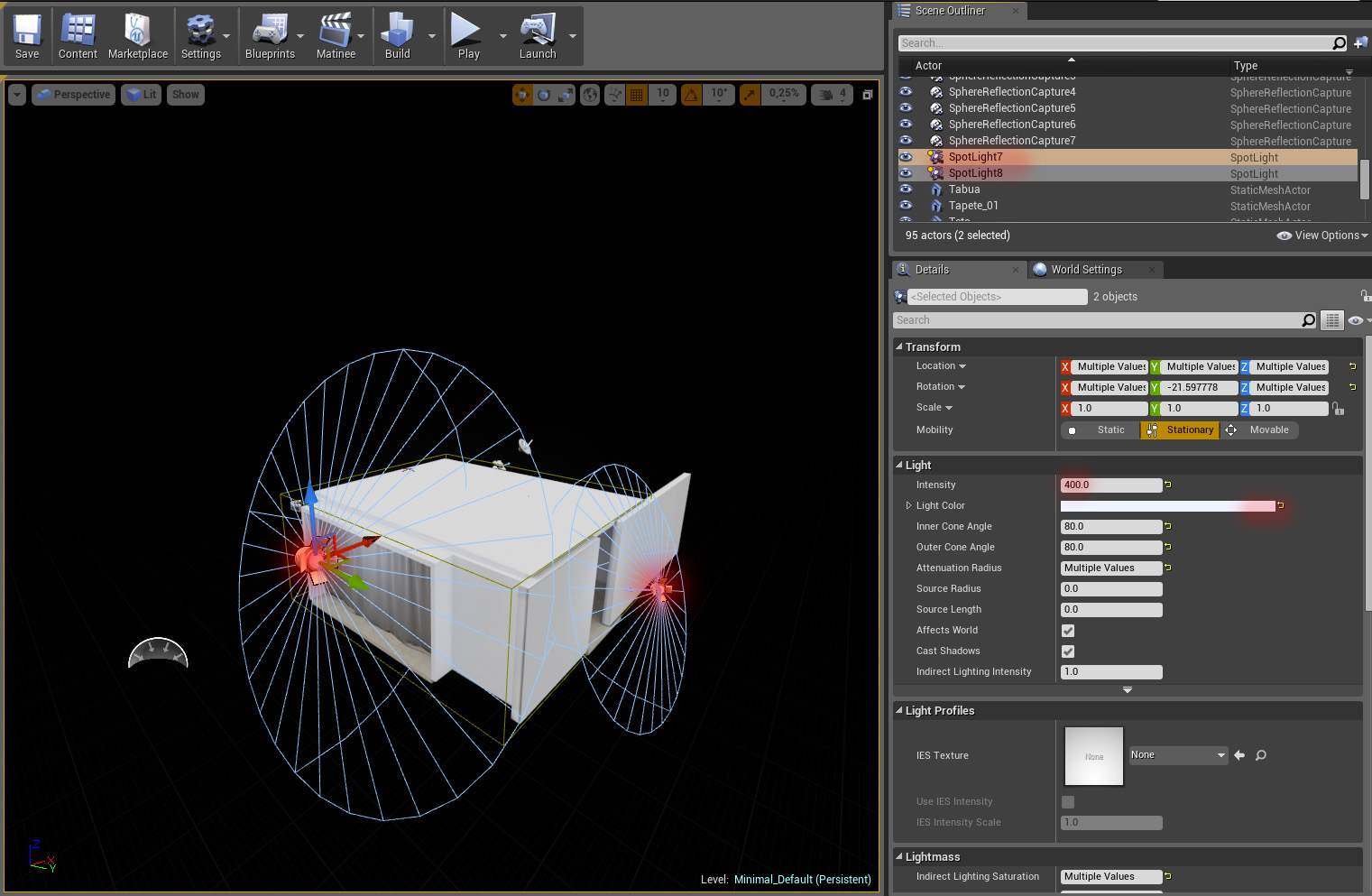
To test the basic lighting click in Build > Lighting quality > High. Spotlight settings on the right.
Click on image to enlarge 
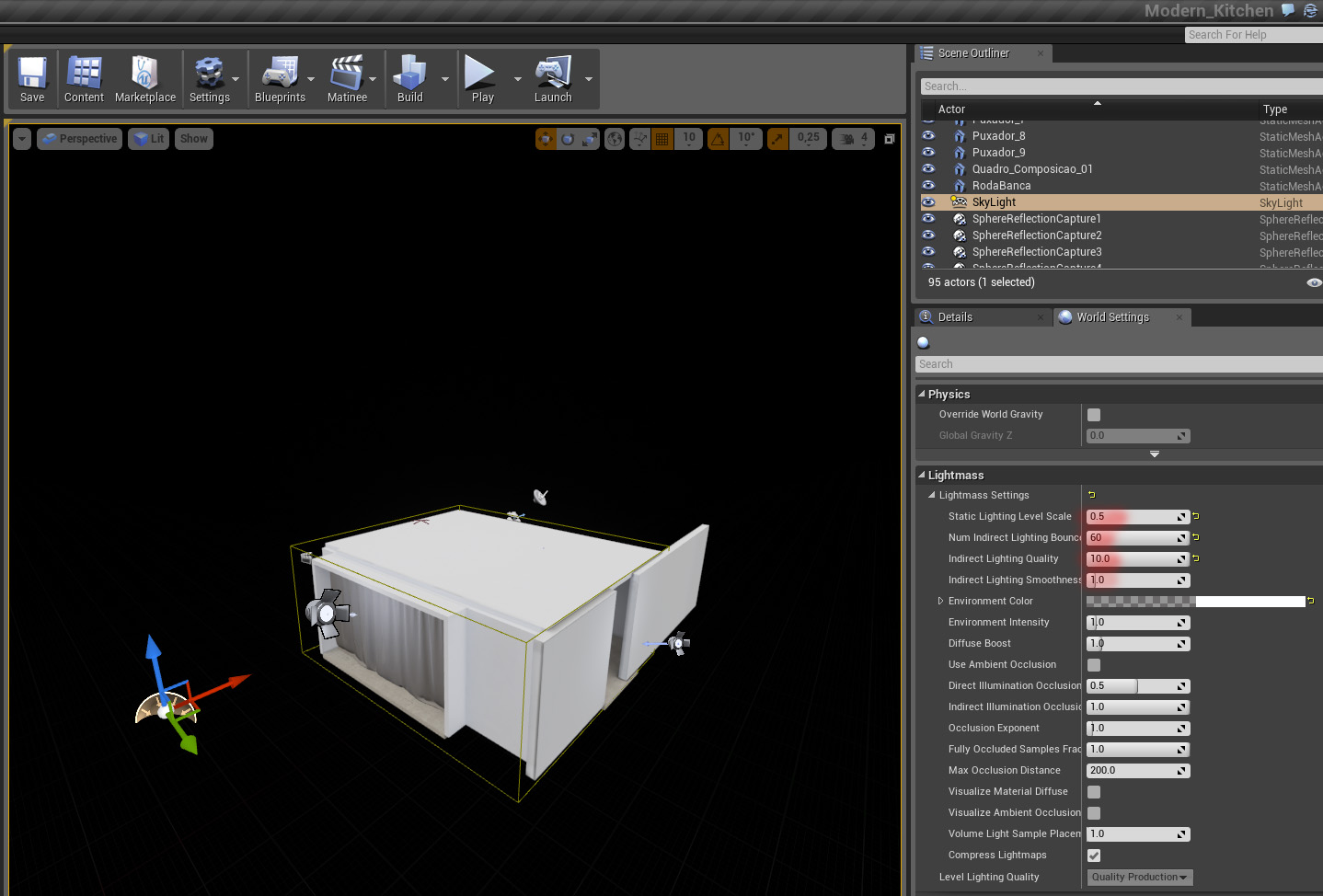
In this demo scene i configured my Lightmass (engine used to calculate GI in UE4) with the above parameters.
After many tests we came to these values to get free illumination spots (splotches or flickers). But remember that each scene should have a particularity.
Post-Process
Click on image to enlarge 

After figuring out the lighting and reaching the desirable effect, you will add a post-process volume where you will have more control on the visual of the scene. In this step you will be able to add Bloom and Vignette effects, control the Exhibition, Depth-of-field, color correction and more.
You can check everything in our complete projects and keep reading the Unreal documentation to experiment different settings. Thanks for reading! This tutorial was brought to you by UE4Arch: http://ue4arch.com.
Advanced Tips & Techniques with mocha & AE

Ben Brownlee focuses on image restoration and beauty work.
In this one hour tutorial, Ben Brownlee, VFX artist and Curious Turtle trainer, works through some real-world examples of using mocha in conjunction with After Effects and Boris Continuum Complete to tackle a number of challenges with a focus on image restoration and beauty work.


Make it Rain with Boris FX and mocha AE

Add realistic rain to a shot with plug-ins in After Effetcs.
Classic Car 3D Title Tutorial

After Effects and Element 3D V2 tutorial.
Tips in this Tutorial:
- Extruding Text & Adjusting Bevels
- Outline Bevel mode for creating Emblems
- Dynamic Reflection Modes
- Create fake car paint flake material.
- Tips for adjust render quality


Animated Cartoon Roto Shapes

Tutorial for mocha and After Effects users.
In this short tutorial, Imagineer Systems Product Specialist, Mary Poplin, uses mocha to create animated roto-shapes to create a simplified and stylized animated look in After Effects. This workflow is basic, and uses simple mocha masks with After Effects filters and solids. Mary also shows you how to convert one selected layer with many mocha masks to separate layers, each with it's own named mocha mask using an easily available free script from crgreen.com.
How to Create Fire with your Hands in After Effects

Set your thumb on fire!
If you want to follow along with this tutorial, you can download the footage here: http://bit.ly/1tatmMu
and the background image here: http://bit.ly/1qwX8rs
For the fire element Surfaced Studio is using Action Essentials 2 by Video Copilot. You can get it here:https://www.videocopilot.net/products...
You can also find some free fire elements on
http://footagecrate.com/fire.html
It is easy to do some motion tracking and attach a basic stock footage element of fire onto your hands, but there is a little bit of work involved if you actually want to make it look good.
After tracking a thumb, we will use a looping fire stock footage element and set thumb on fire! With the help of a delta null object and some clever expressions to bend the fire. Finally we will add some advanced lighting to the scene using the Difference Matte effect to avoid spending hours rotoscoping.
and the background image here: http://bit.ly/1qwX8rs
For the fire element Surfaced Studio is using Action Essentials 2 by Video Copilot. You can get it here:https://www.videocopilot.net/products...
You can also find some free fire elements on
http://footagecrate.com/fire.html
It is easy to do some motion tracking and attach a basic stock footage element of fire onto your hands, but there is a little bit of work involved if you actually want to make it look good.
After tracking a thumb, we will use a looping fire stock footage element and set thumb on fire! With the help of a delta null object and some clever expressions to bend the fire. Finally we will add some advanced lighting to the scene using the Difference Matte effect to avoid spending hours rotoscoping.
QubaHQ Channel Splitter

An After Effects script and Photoshop action for automatic splitting of the image/footage into discrete RGB or CMY channels. Tutorial + Preset + Action included.
Channel Splitter can change the way you experiment with color correction as well as open a brand new way of color grading through changing the “inks” rather than the channel values.
Learn more and download script and action files here.
Electric Text Tutorial

In this tutorial, you will learn how to create a very slick electrical/lightning text reveal effect right within After Effects using mostly built-in effects.

Grading in After Effects

Sam Conlogue from Infusion Studios reveals his methods of color grading.
A quick tutorial on grading in After Effects using Magic Bullet Looks, a plug-in developed by Red Giant Software. MBL is a powerful, responsive and fun way to enhance your post workflow.
Part 2 - a bit more advanced looking at heavily grading and finishing an animation using the native color correction tools in After Effects along with some other industry standard plug-ins like Optical Flares from VIDEOCOPILOT.NET and Real Smart Motion Blur from RE:Vision Effects.

Tip: How to generate a dirt mask in Modo

Texture artist, Aaron Wilson, explains how to generate a dirt mask in Modo using Hatch the newest 3D asset to Animation Mentor.

Mesh Fussion: getting started

See how MeshFusion can be used to interactively blend the subtraction, addition and intersection of subdivision surfaces.
MeshFusion for MODO has been developed by Braid Art Labs based upon the previous GroBoto technology. This revolutionary new modeling plugin is available exclusively for MODO 701. By adding MeshFusion to your MODO workflow, you will be able to take advantage of new modeling operations that will let you interactively blend, add and subtract objects to create consistently high quality Subdivision Surface (SDS) models.
Why add MeshFusion to MODO?
- Create booleans between subdivision surface (SDS) objects
- Control the blending between the resulting surfaces
- Edit assembly instructions creatively with three intuitive editing modes (3D Tree Fusion, Schematic Fusion and Fusion Strip)
- Use with deformers and other MODO modeling tools, giving freedom to experiment more
- Final mesh output is a single unified mesh ready for further editing or export to .STL for 3D printing
Modo 701 Training - Shoulder Corrective Morph

Barry Zundel explains how to set up corrective morphs on a shoulder in Modo 701.
Asset creation pipeline using MODO, Substance and Unity

3D content creation for game development and asset creation pipeline using The Foundry's MODO, Allegorithmic Substance and Unity.
Wes McDermott's presentation at Unity's 2013 Unite conference:

Modo - 20 Minute Skin Shader

Setting up a quick and dirty skin shader in Modo using only 2 maps in about 20 minutes.
Architectural Lighting in MODO

In this video tutorial from Yazan Malkosh, we explain detailed techniques for creating compelling day and night shots of a contemporary interior living space using MODO.
Tutorial: RealFlow to Modo

This tutorial shows you step by step how to import RealFlow liquid particles & meshes into MODO without importing the actual geometry data.
Creating an ocean trawler in MODO

Learn how to create an animated procedural ocean, and then how to animate the ocean trawler boat.
Creating a Simple Diffuse Lighting Shader in Maya LT ShaderFX

Matthew walks you through the steps needed to create a basic diffuse lighting shader in ShaderFX.
Paint effects in Maya

Dan Shut, 3D tutor extraordinaire, wants to share with you a great tip for embedding your geometry into your scene with paint effects.
Langganan:
Komentar (Atom)