Archviz tutorial by Robert Laguerta.
Greetings everyone! My name is Robert Laguerta, working as CG artist at Architect Design Practice, Malaysia.
I would like to share with you the “Making of Rest House". It’s a house designed and modeled by Rasco Architecture, a company based in Hong Kong.
Click on image to enlarge 
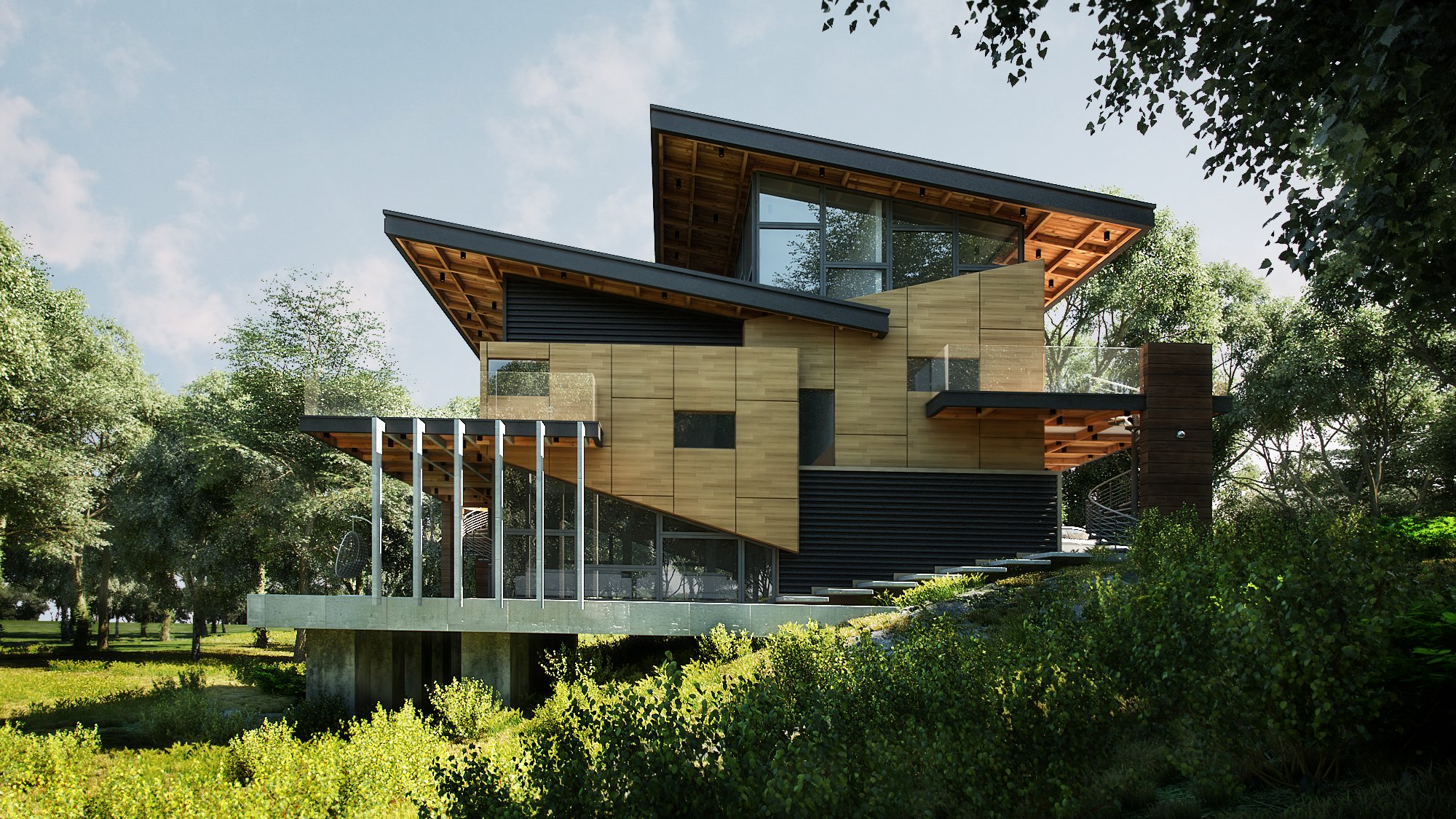
First we check our final render...
The objective of the rendering is to create an environment that will complement the house with the surrounding landscape.
Software used: Sketch up, 3ds Max, V-Ray and Photoshop.
Software used: Sketch up, 3ds Max, V-Ray and Photoshop.
Modeling:
Click on image to enlarge 
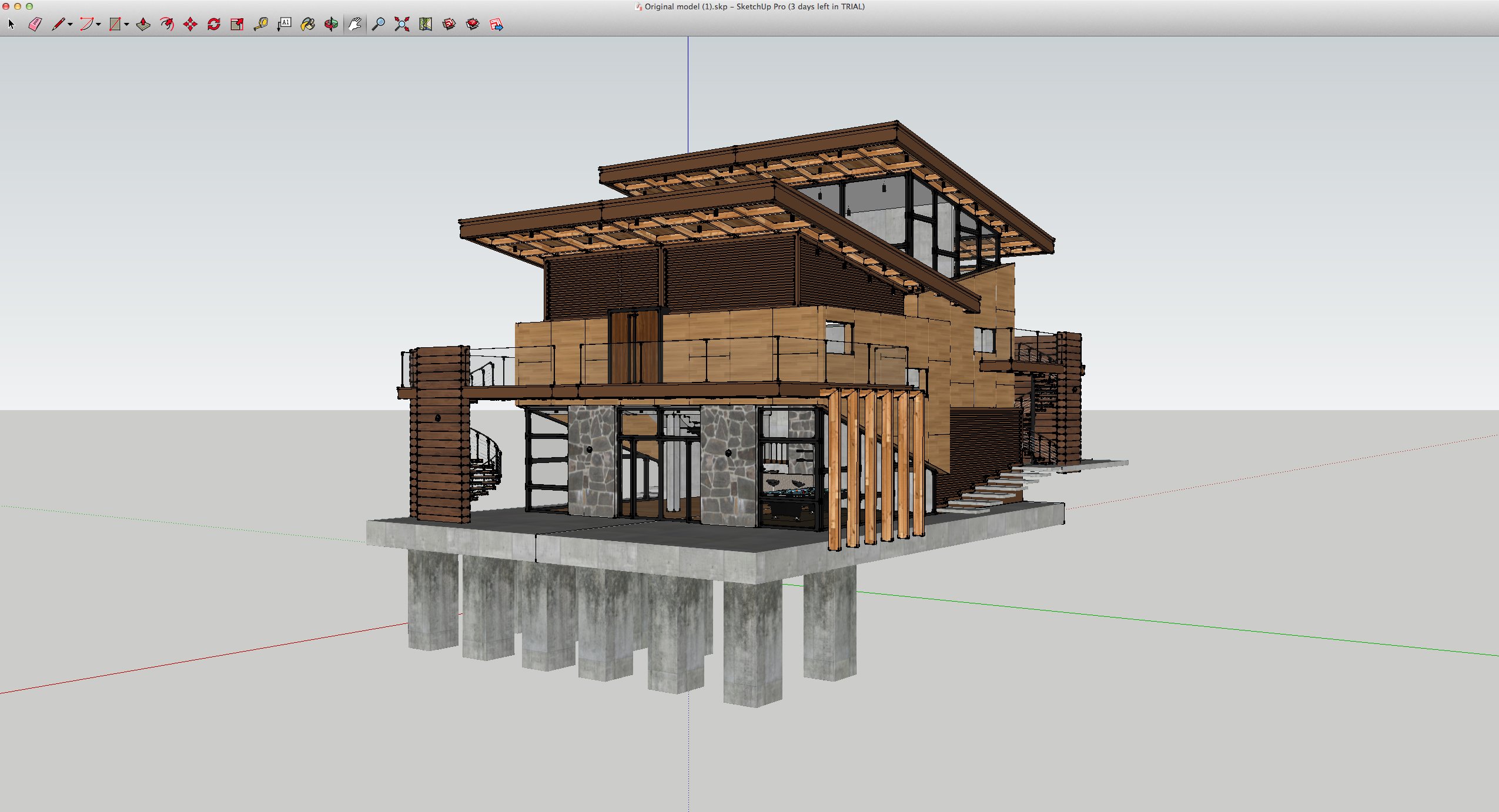
House is modeled using SKP then imported to 3ds Max. Terrain is added using Plane standard object, adding segments to follow the House structure using (push/pull) in Paint Deformation option to create some bumps.
This work based on 5SRW principle (Read an article: "Five steps to realistic renders"):
Click on image to enlarge 
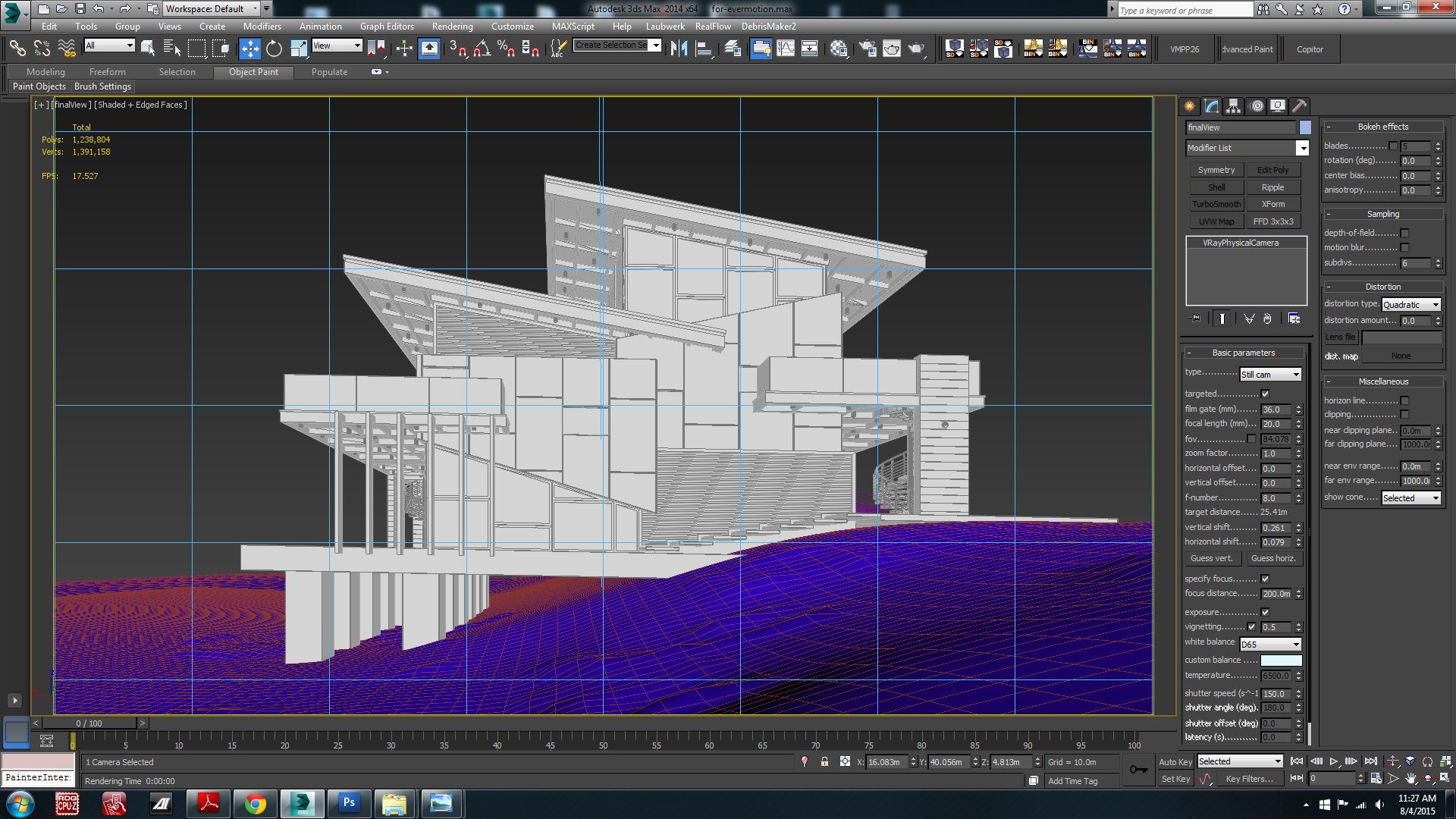
Step one: camera settings (framing)
Click on image to enlarge 
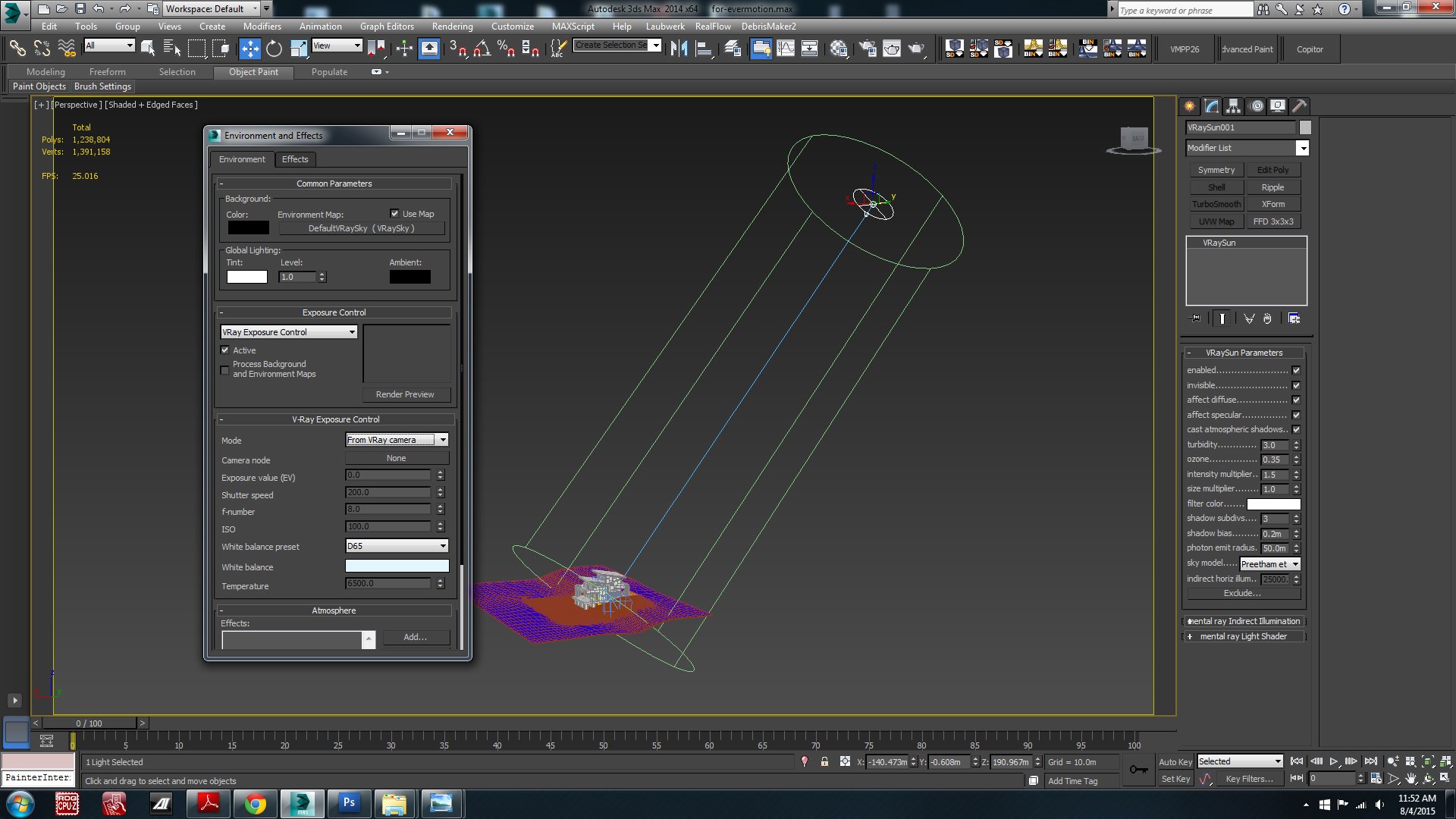
Step two: Vray Sun Setting (light balance). Only VRaysun and VRaysky are used for this scene.
Click on image to enlarge 
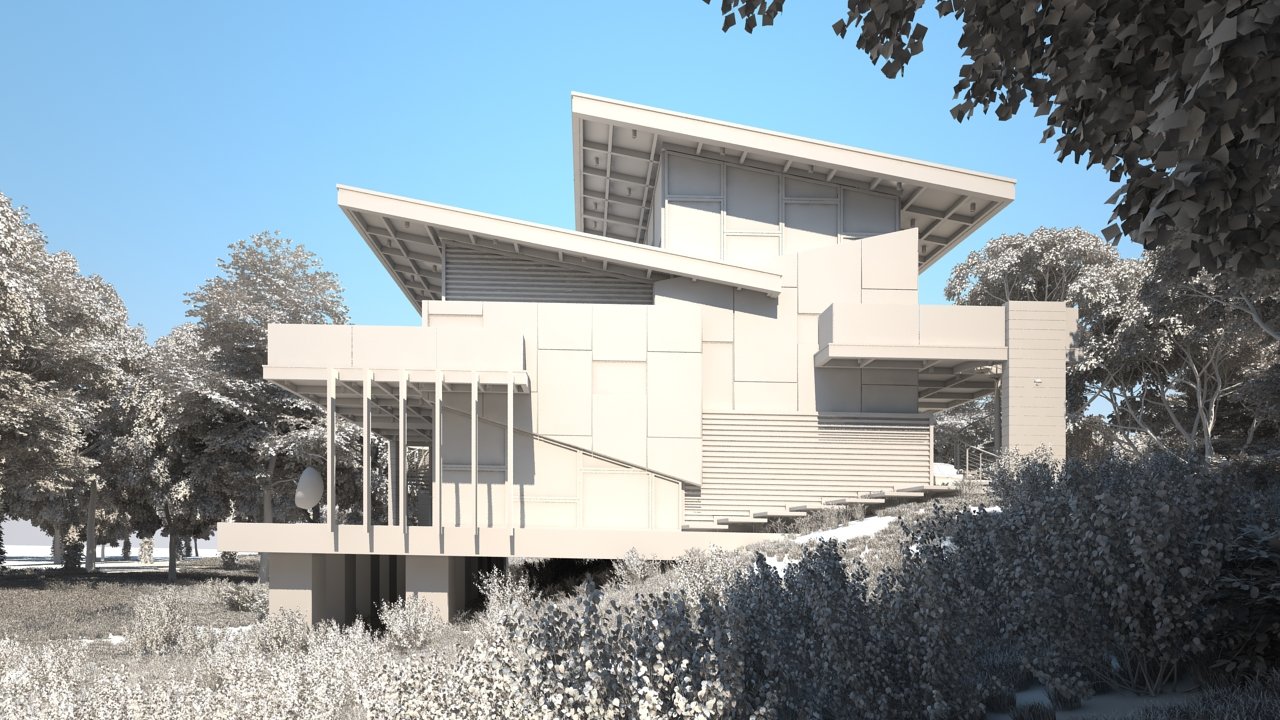
Light balance
Click on image to enlarge 
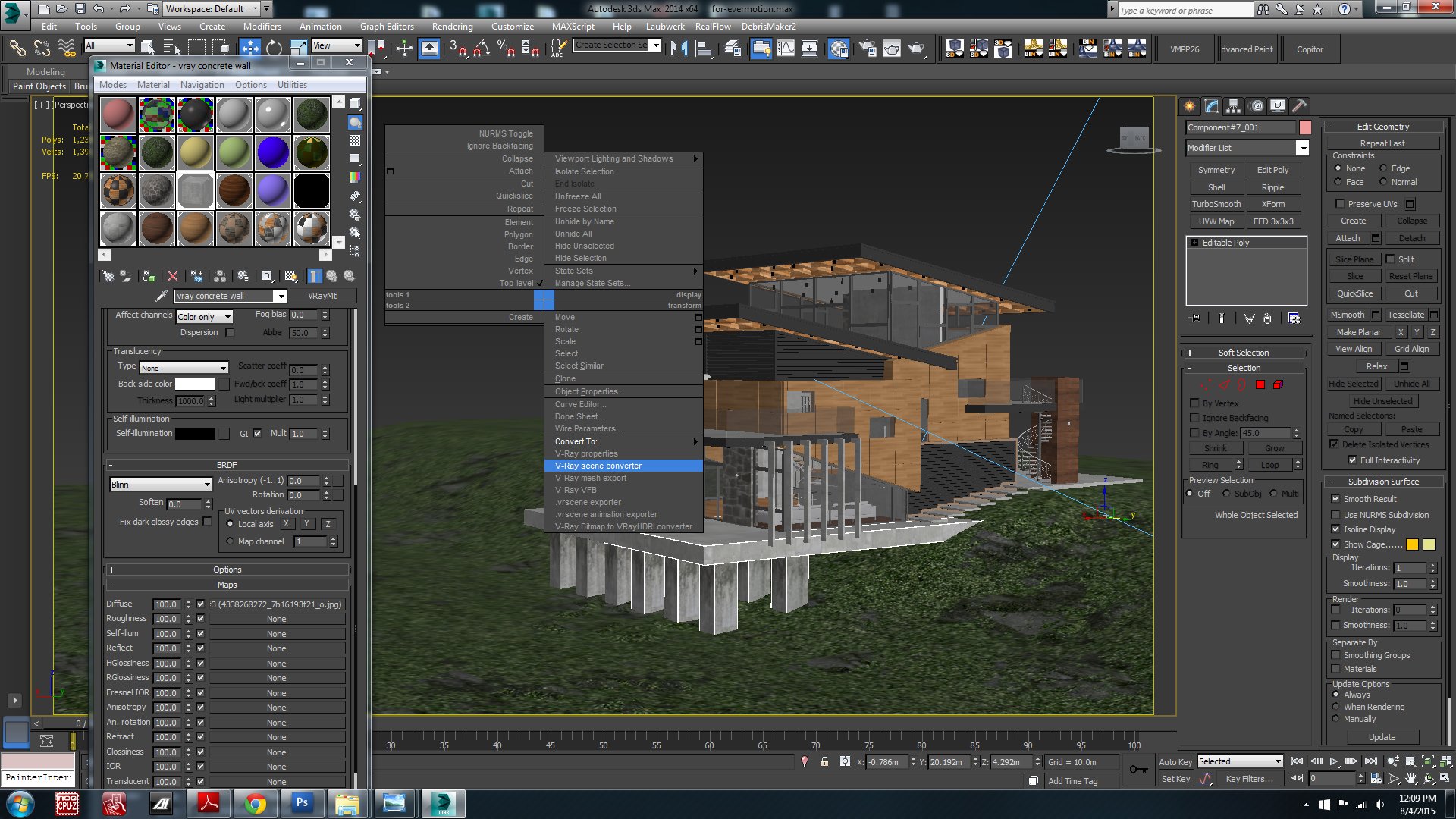
Step 3: materials. House materials are all attached inside SKP, and converted using “V-ray Scene Converter”.
Click on image to enlarge 
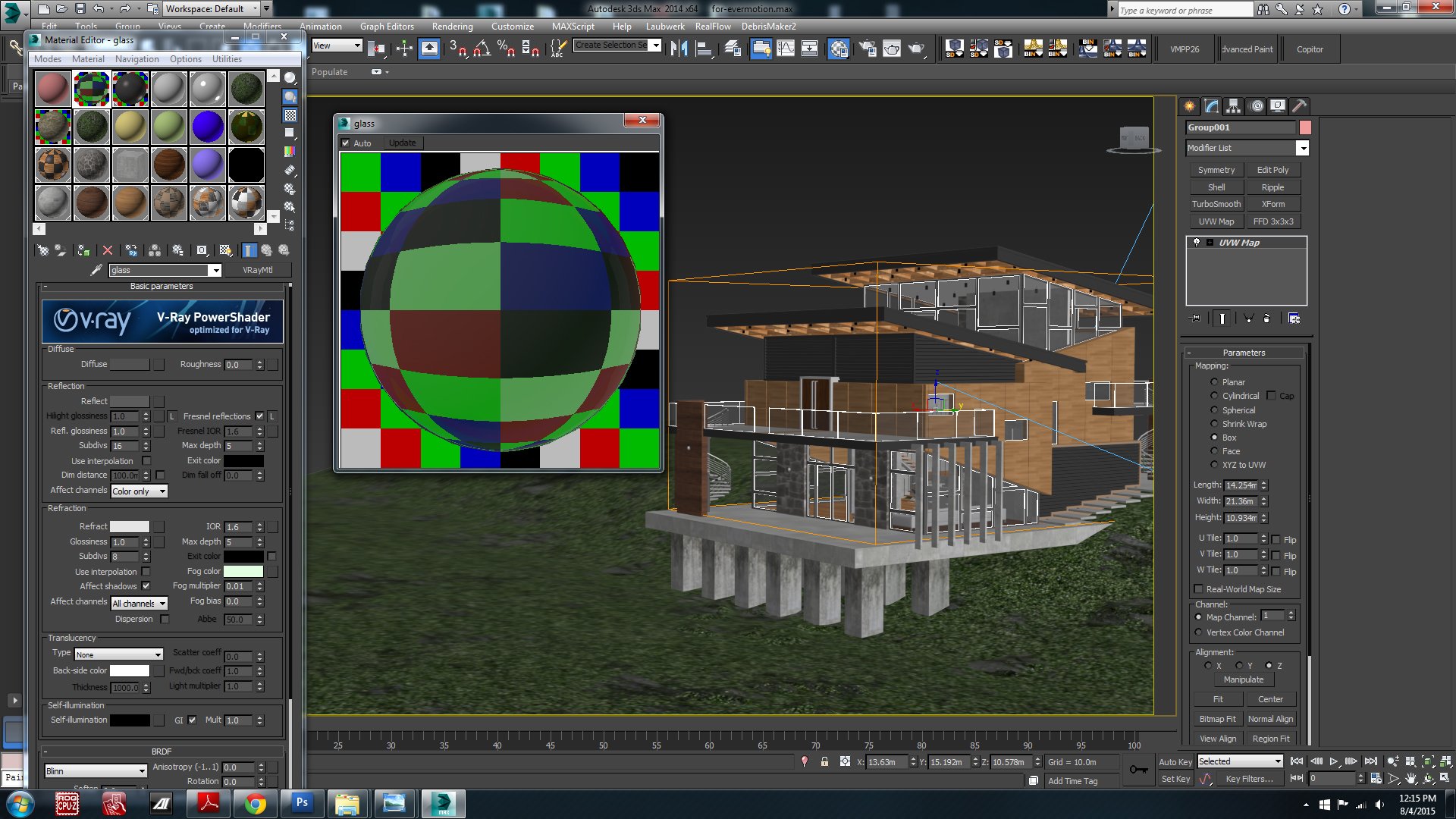
Only Glass and Terrain Materials are created. Glass material settings.
Click on image to enlarge 
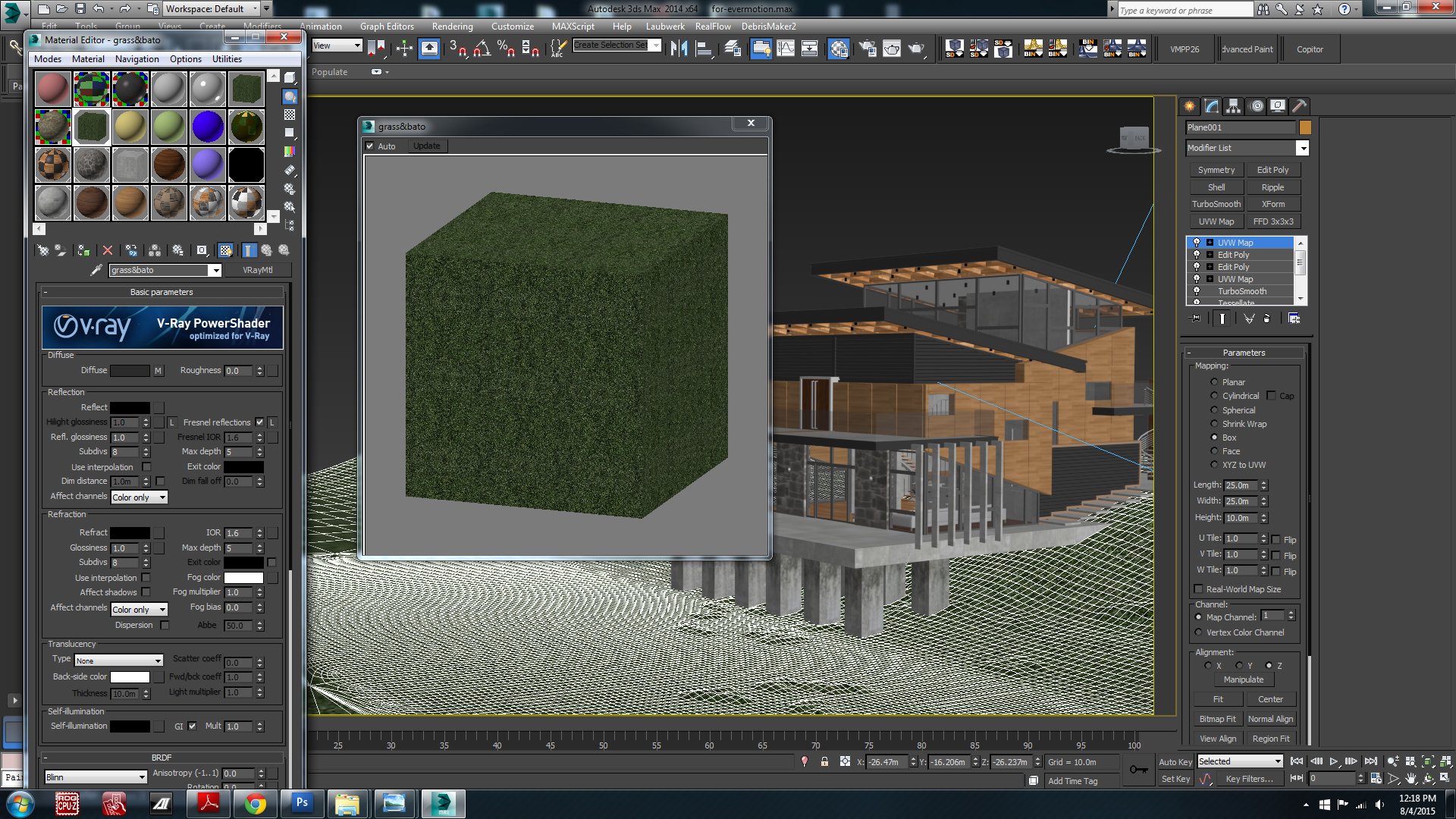
Terrain material settings.
Click on image to enlarge 
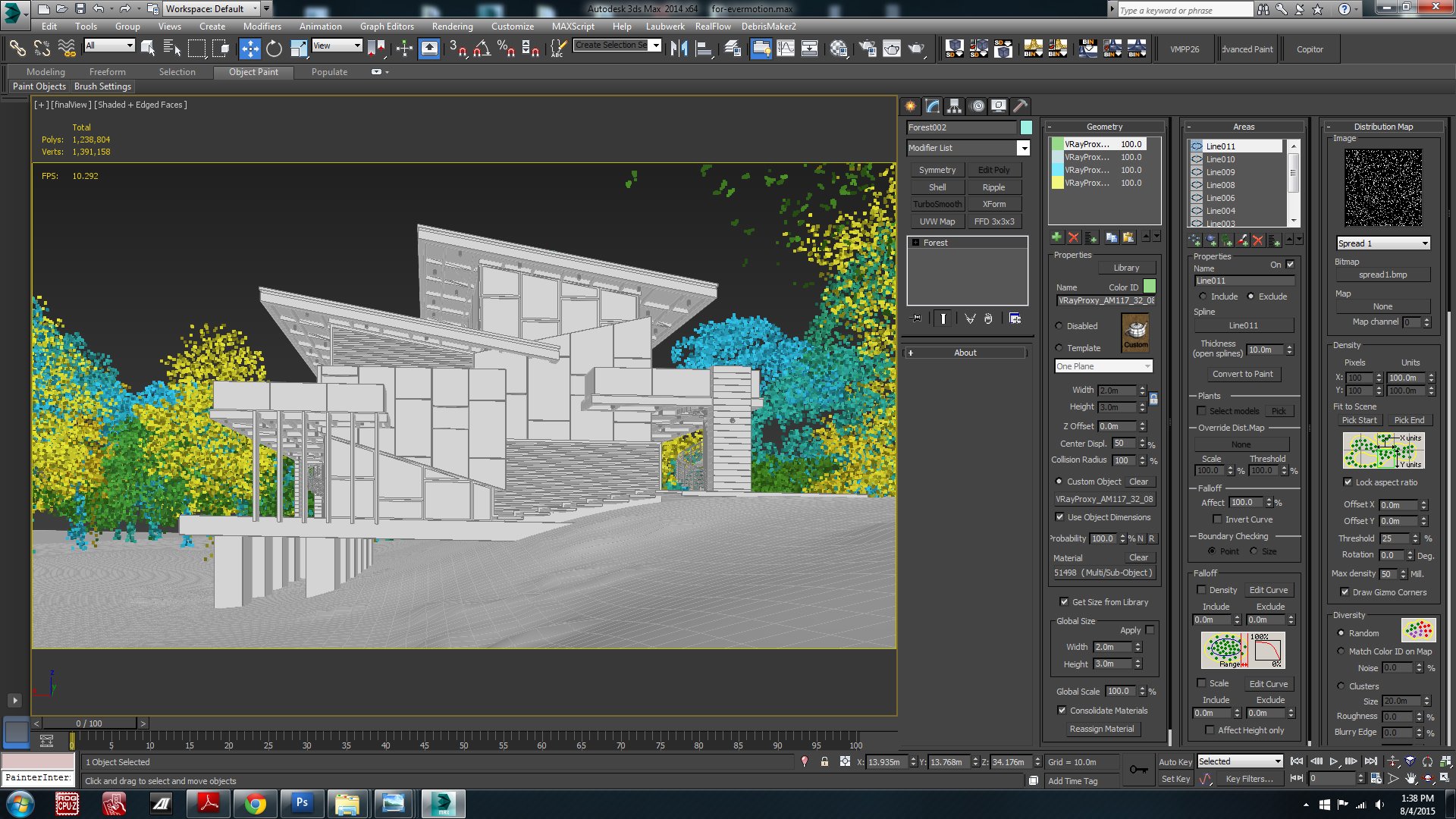
Now for the fun part, adding the Landscape. I used Evermotion models from Archmodels vol. 117 for the trees.
Click on image to enlarge 
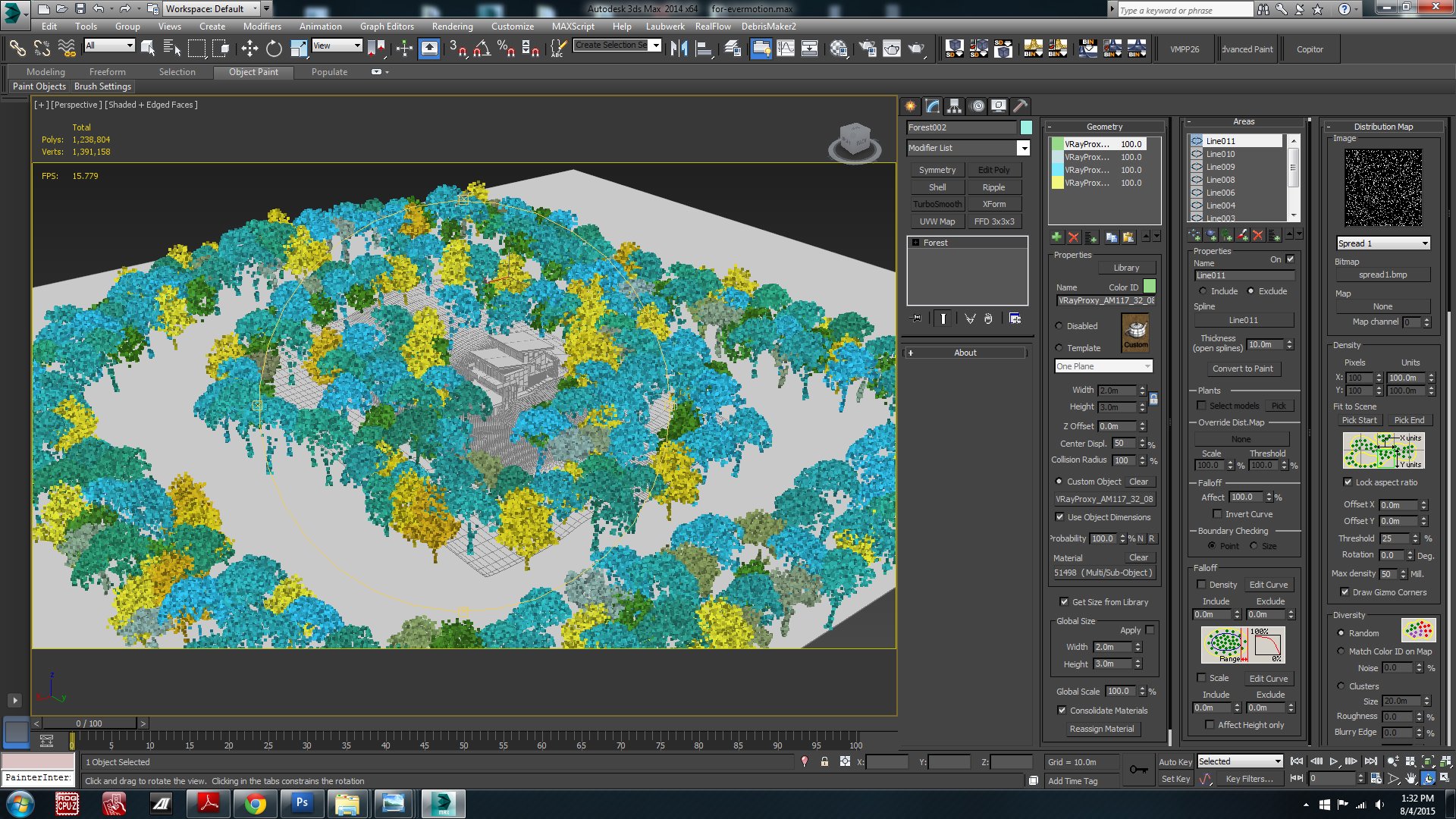
Trees placement.
Click on image to enlarge 
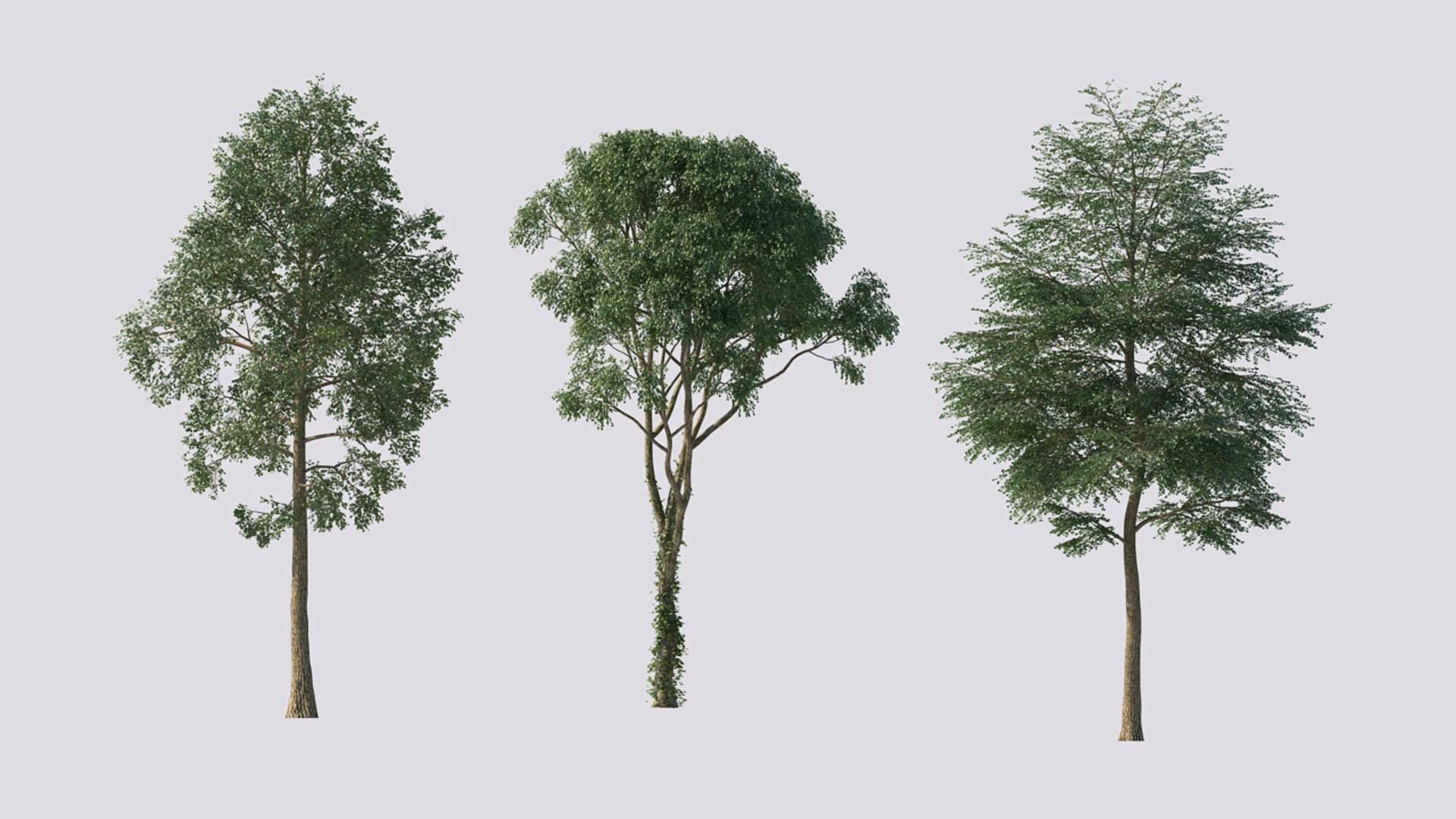
Trees from Archmodels vol. 117.
Click on image to enlarge 
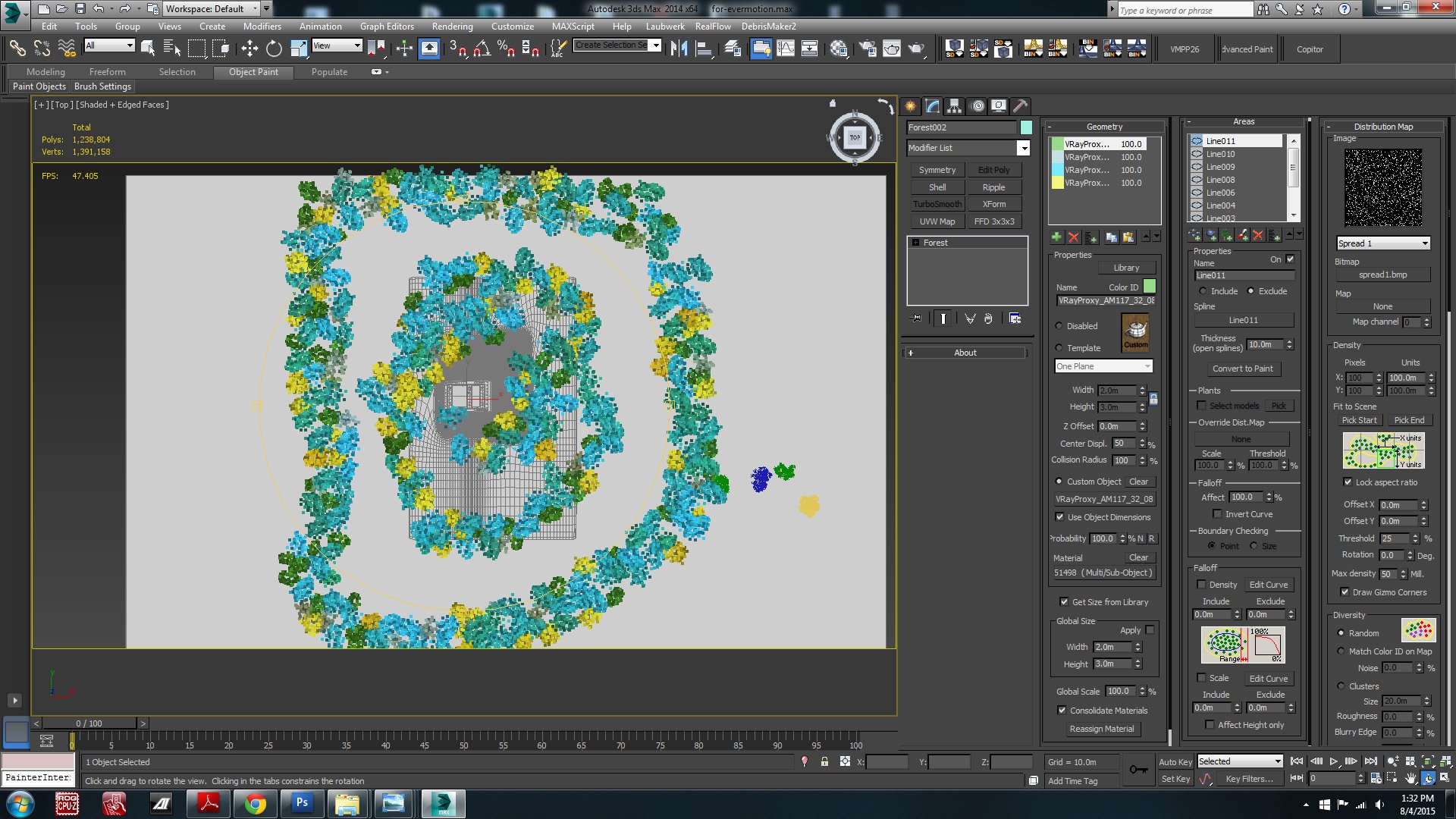
Top view of the scene.
Click on image to enlarge 
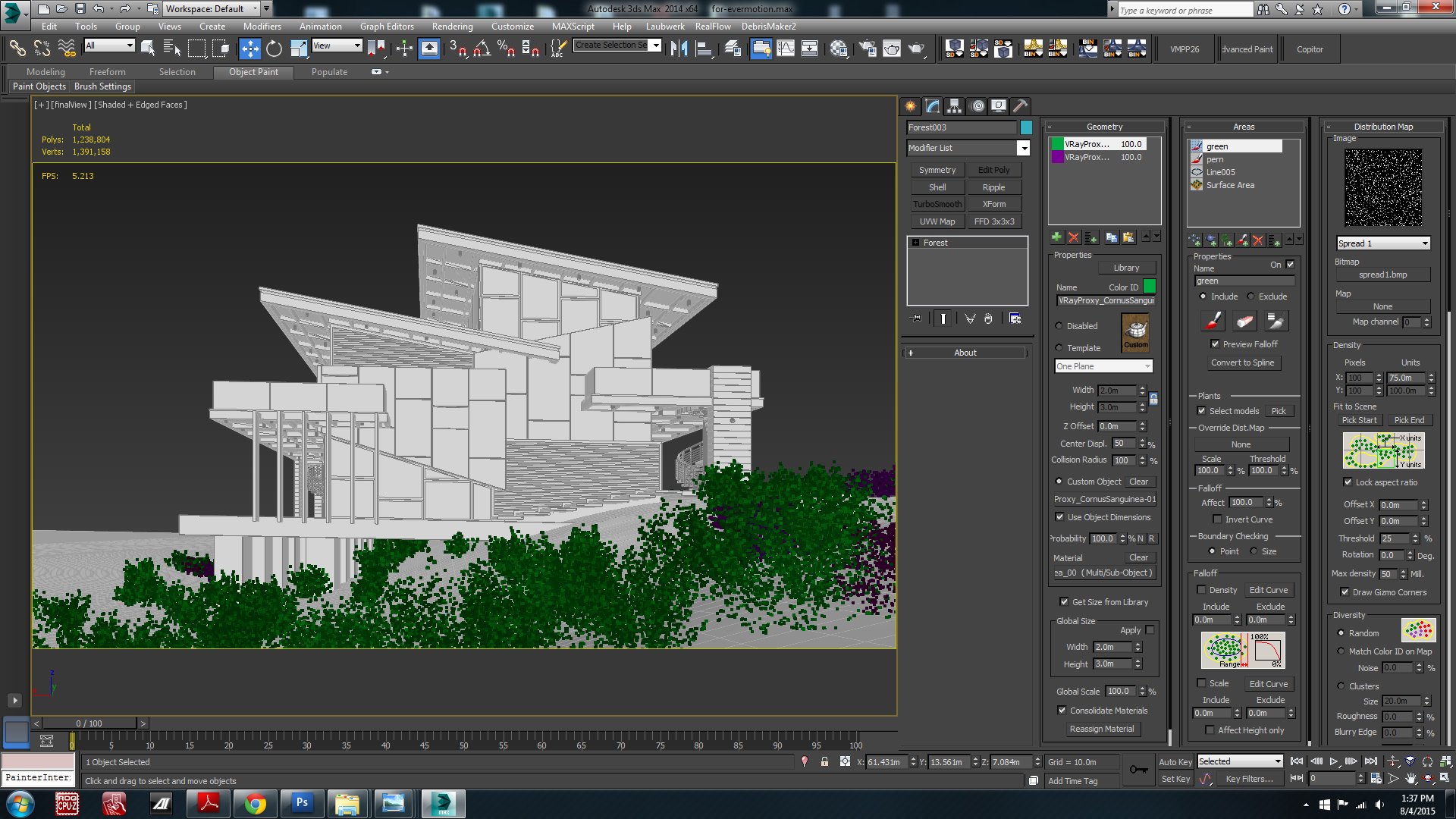
I used Itoo Forest Pack Pro for scattering trees and shrubs. Shrubs settings on the right.
Click on image to enlarge 
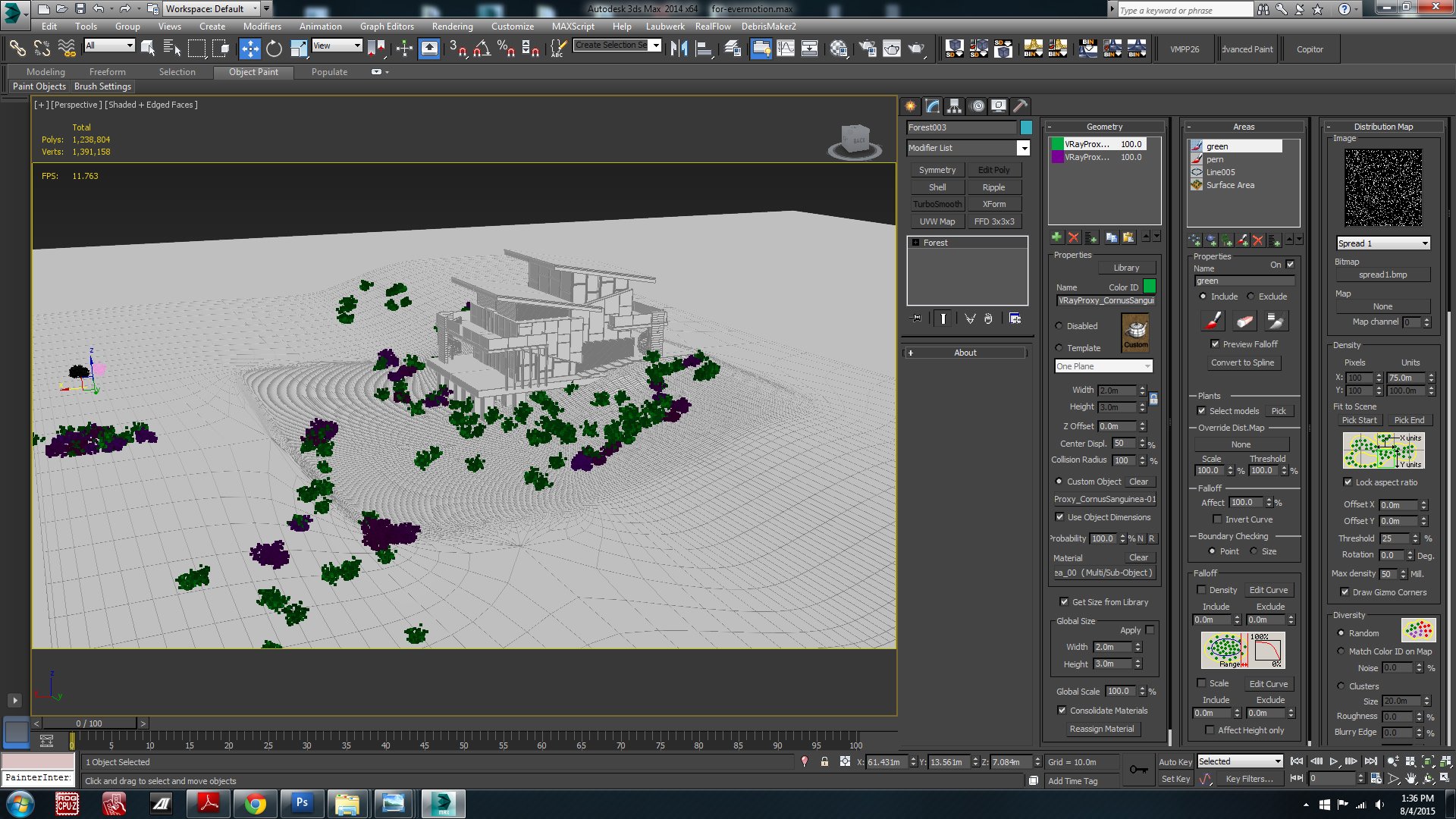
Shrubs scattering.
Click on image to enlarge 
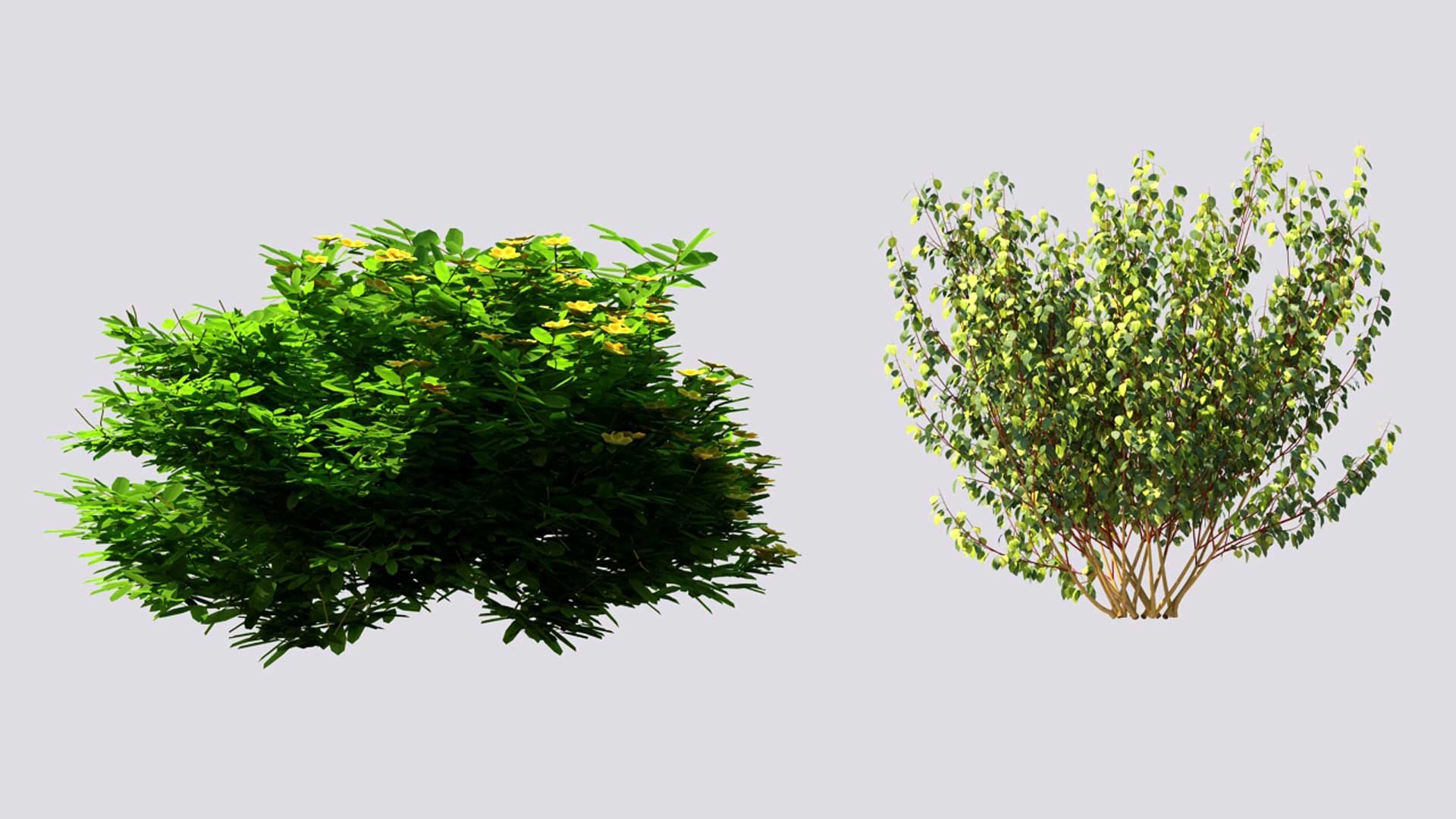
Shrubs used in this scene.
Click on image to enlarge 
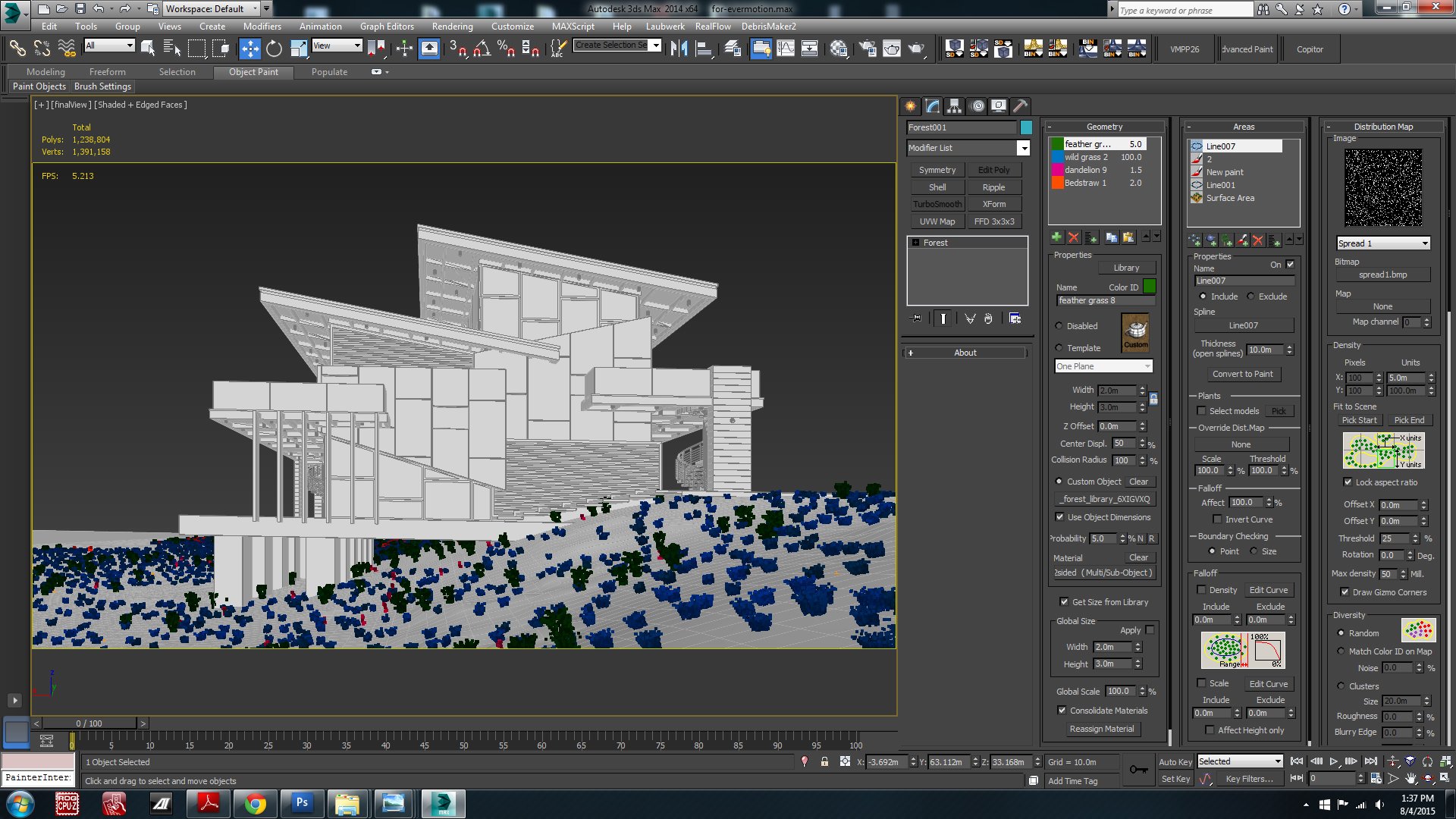
Grass settings.
Click on image to enlarge 
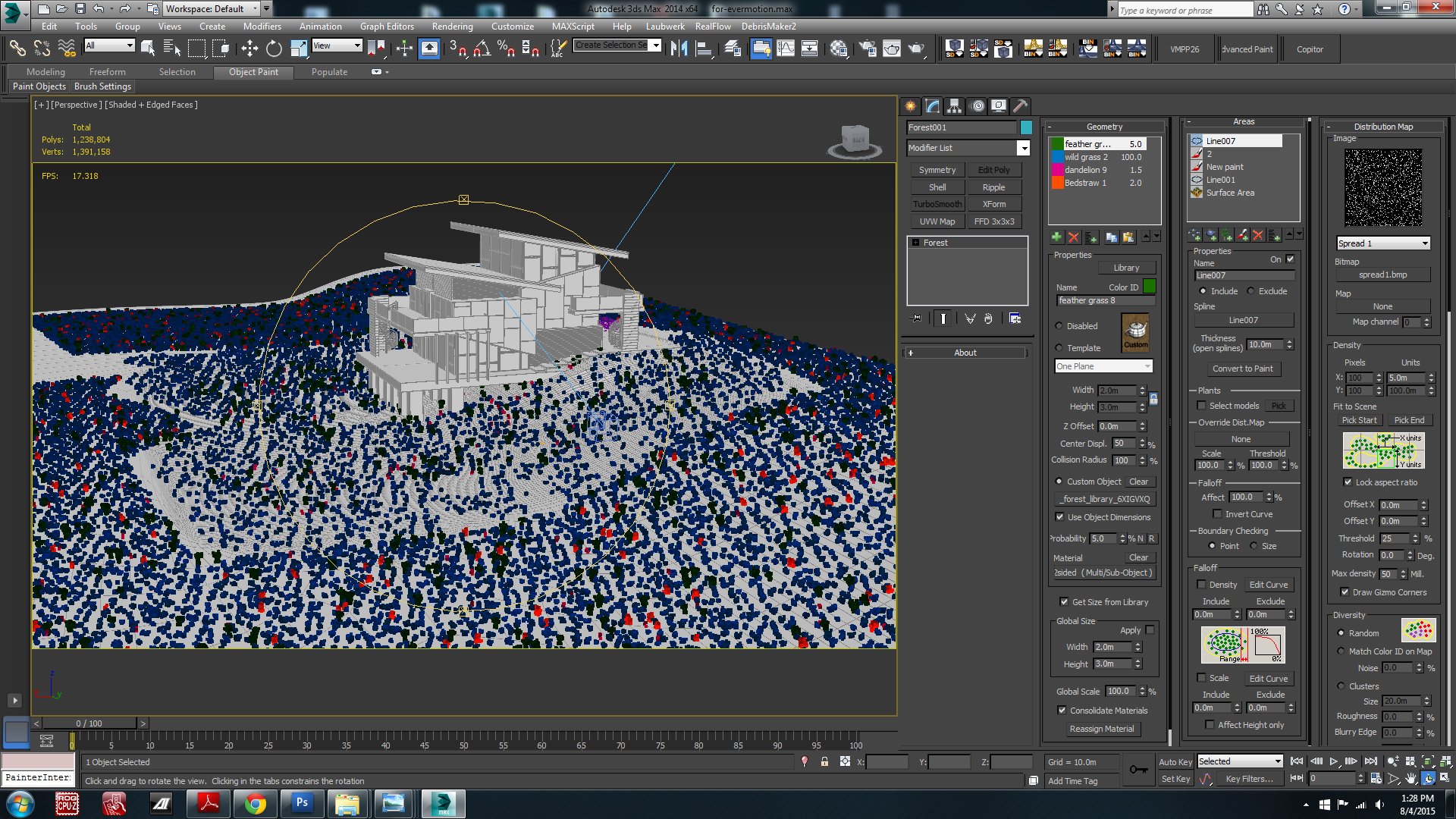
...and grass distribution.
Click on image to enlarge 
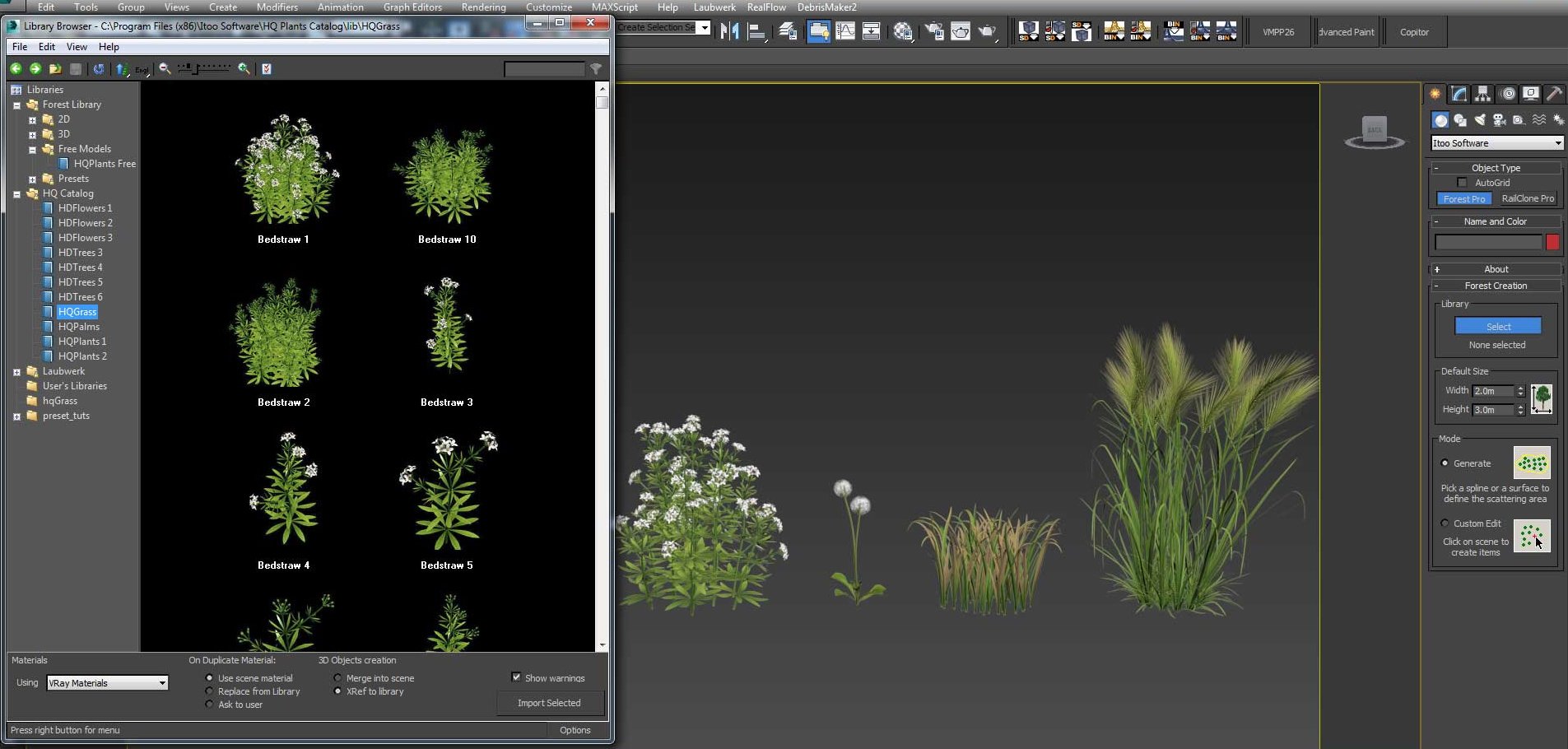
Grass models.
Click on image to enlarge 
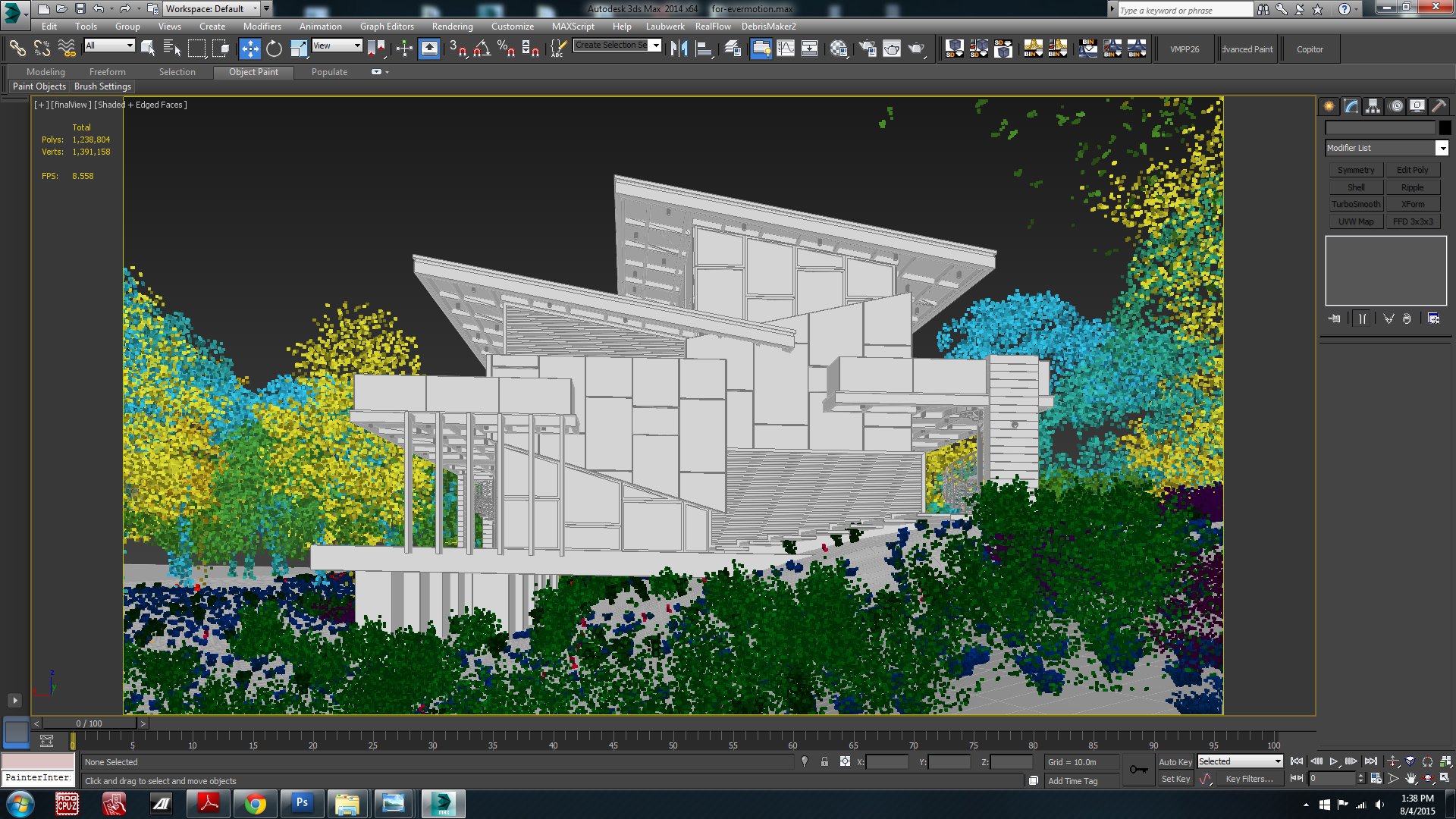
Everything is in place. Now we are ready to render!
Click on image to enlarge 
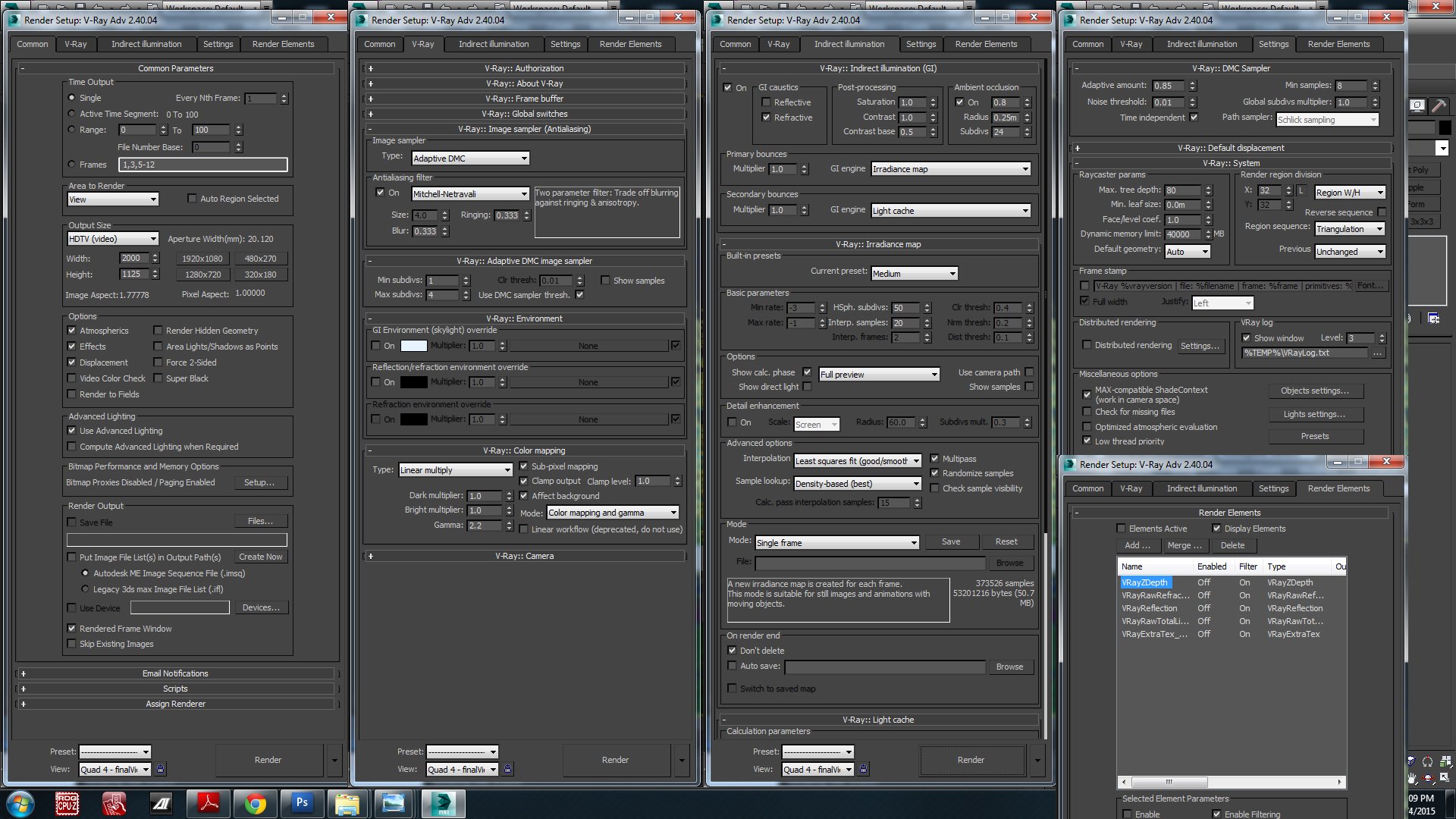
Render settings.
Click on image to enlarge 
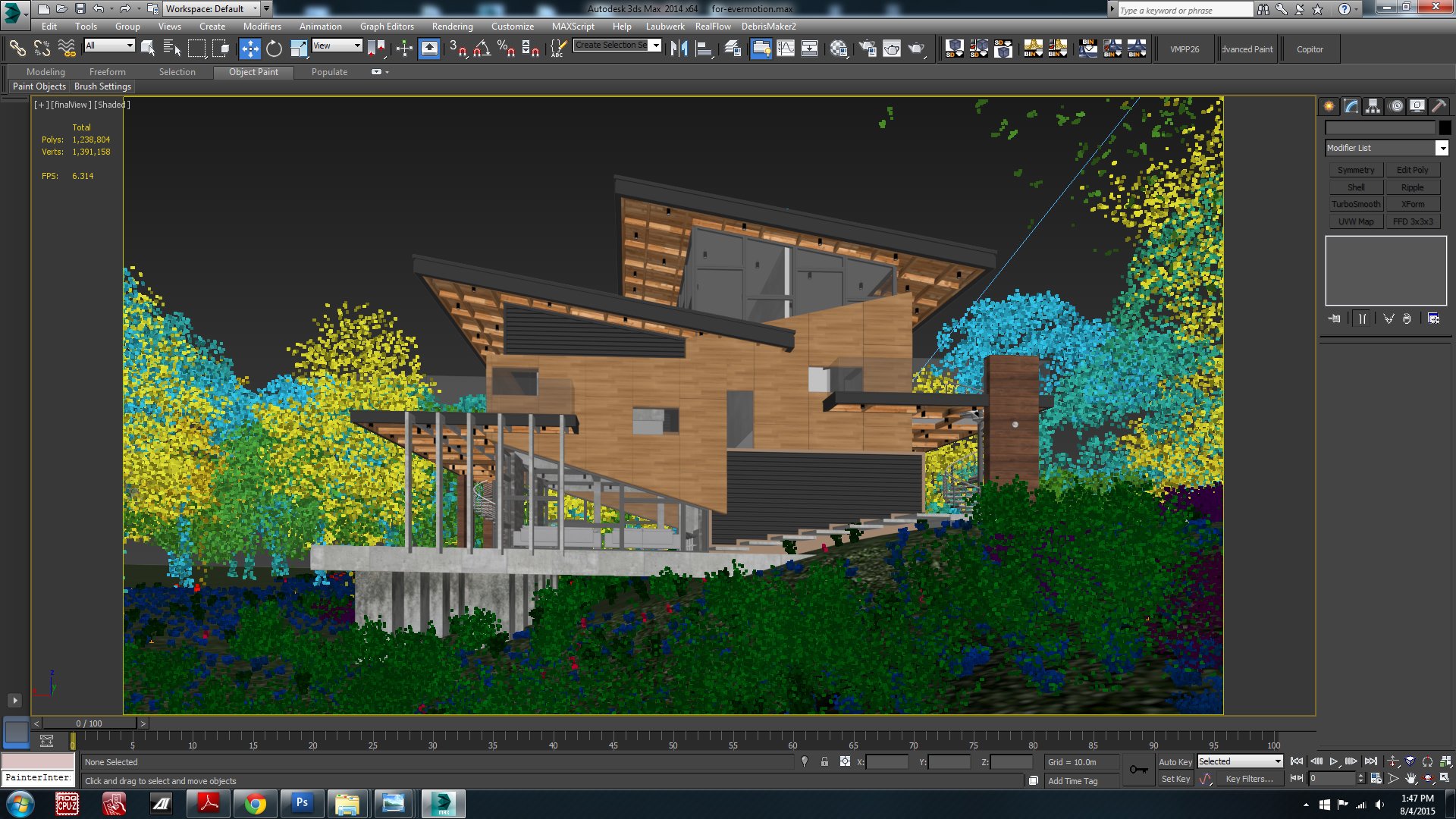
Scene in 3ds Max viewport.
Render elements
Click on image to enlarge 
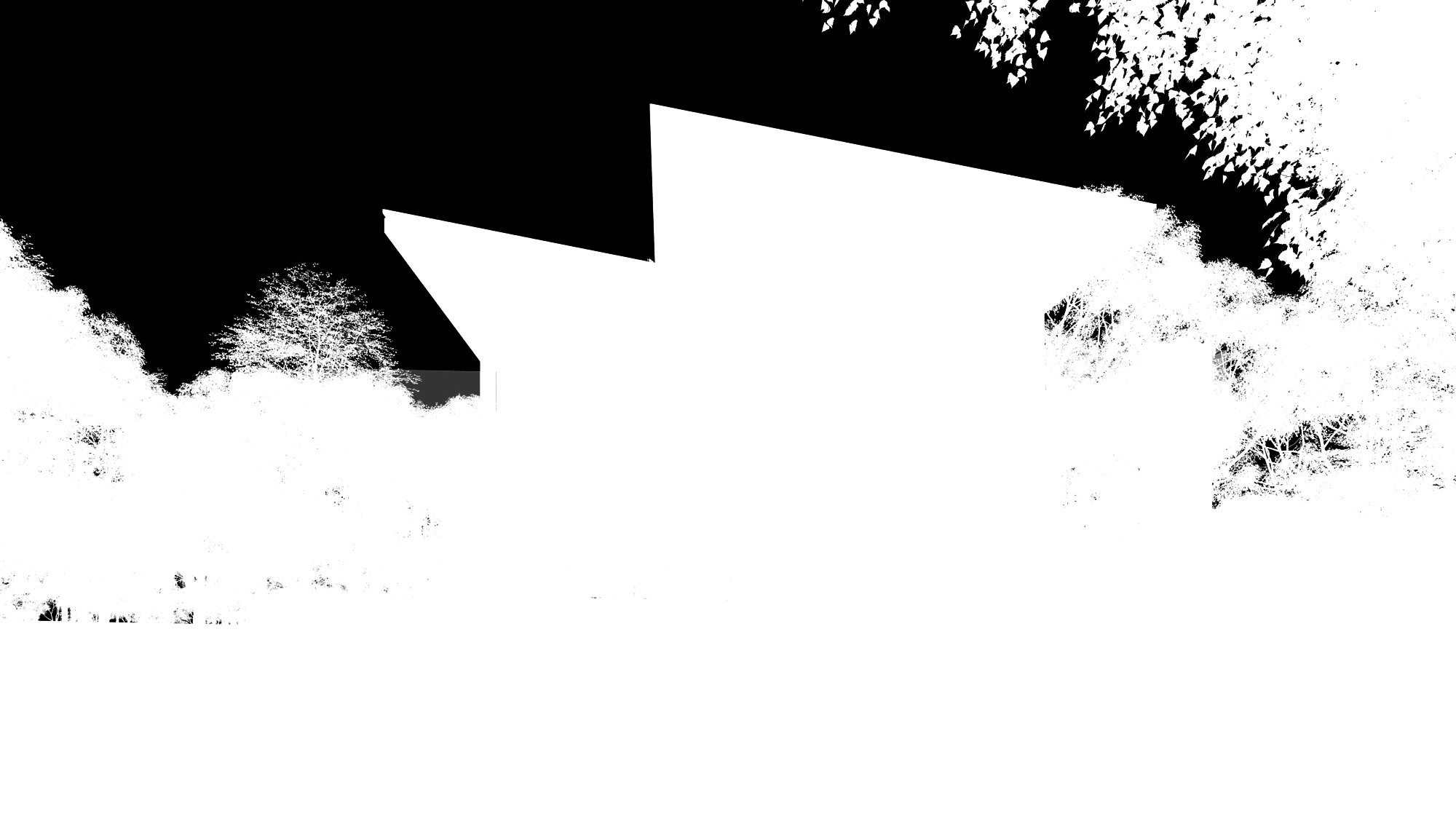
Alpha
Click on image to enlarge 
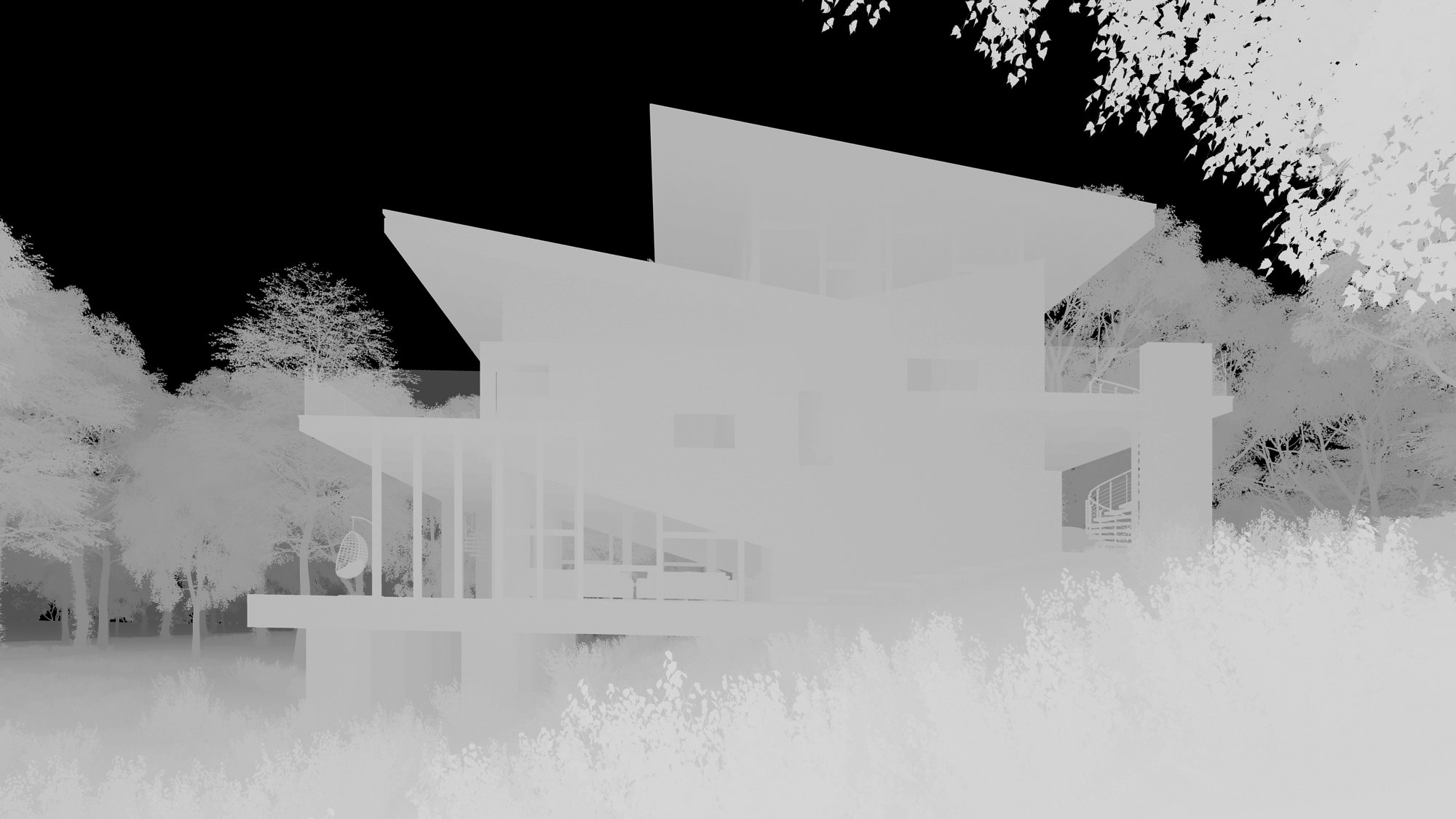
VRayZdepth
Click on image to enlarge 

Vray Dirt.
Click on image to enlarge 
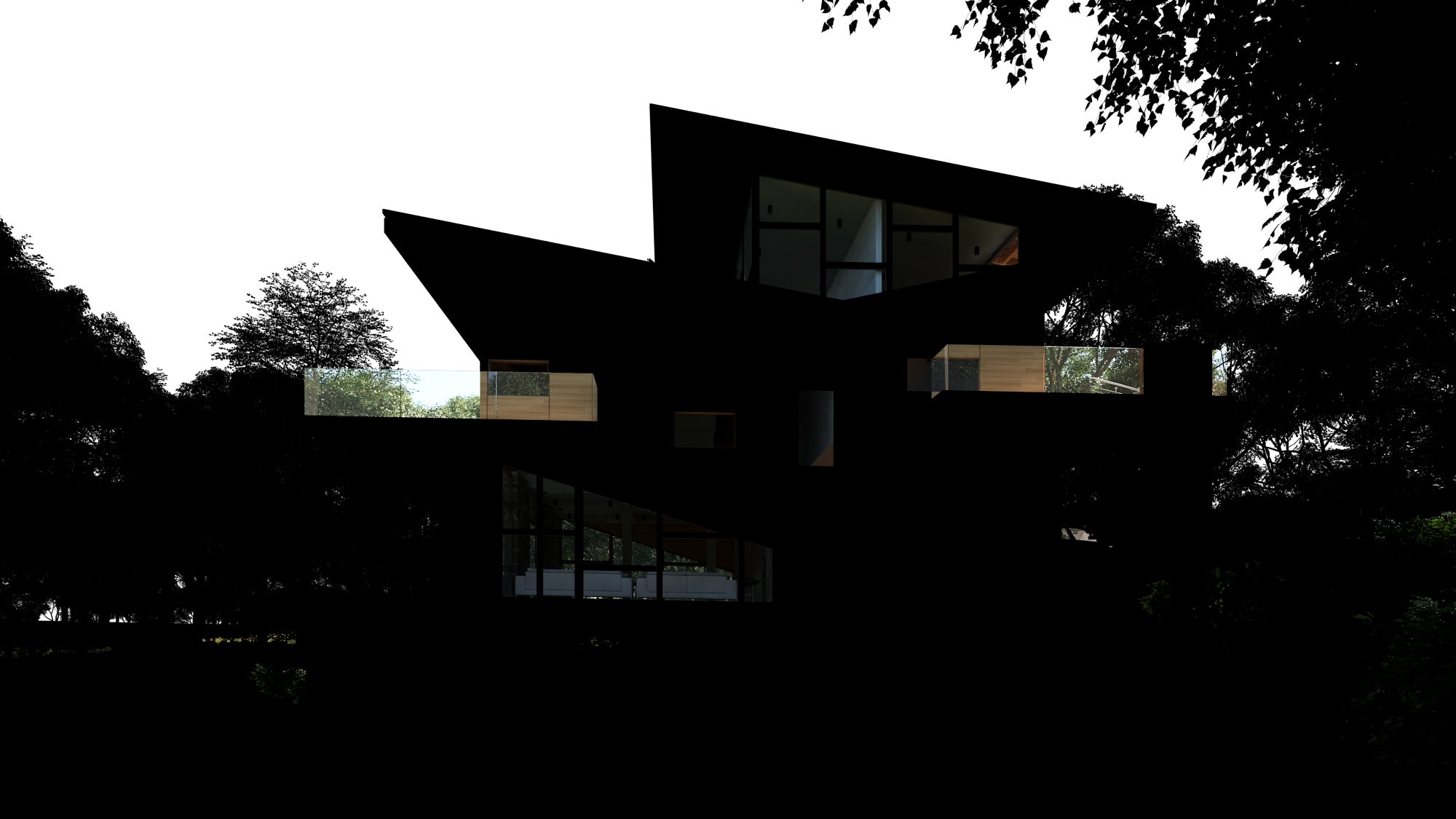
VRayRawRefraction
Click on image to enlarge 
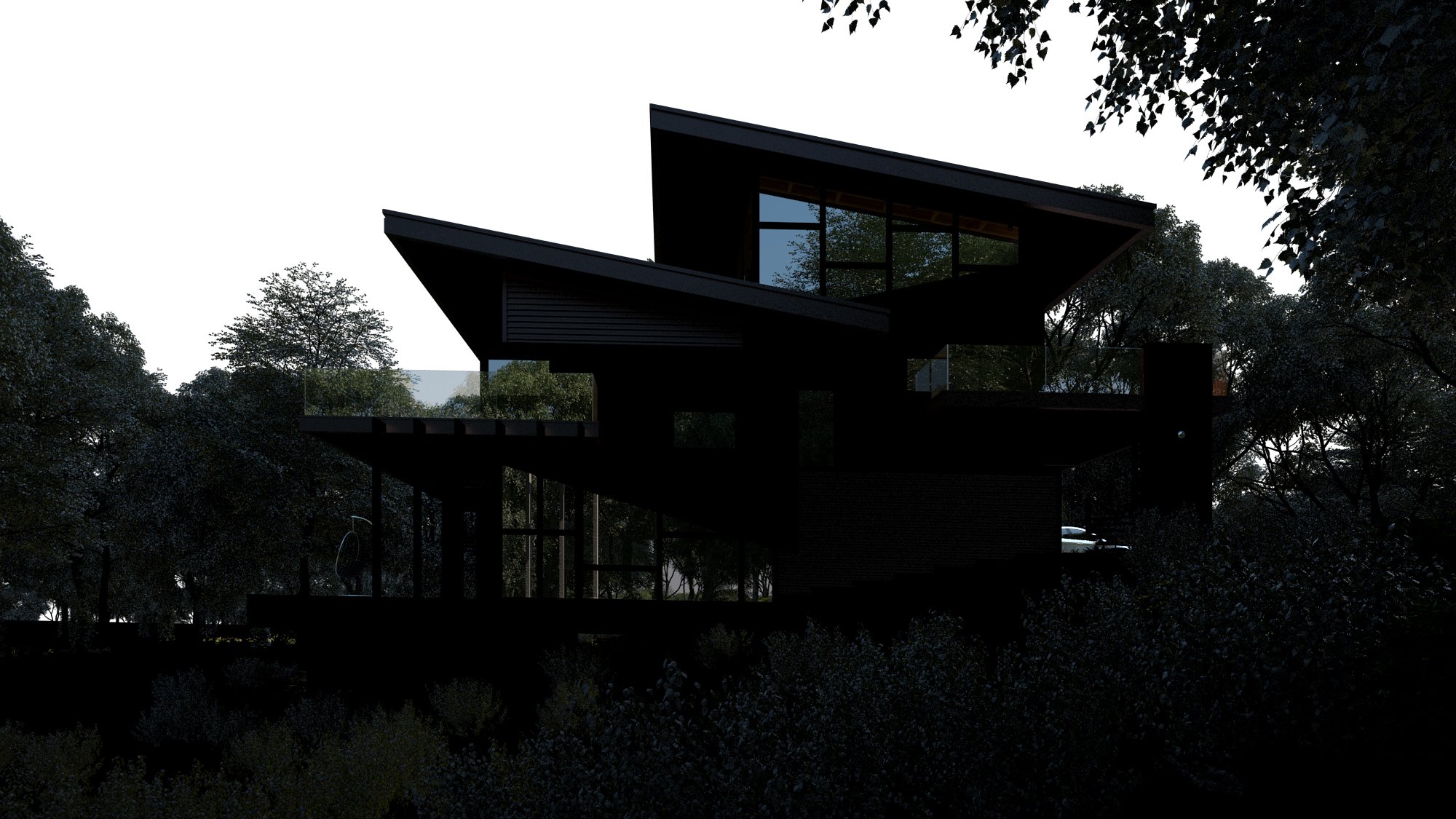
VRayReflection
Click on image to enlarge 
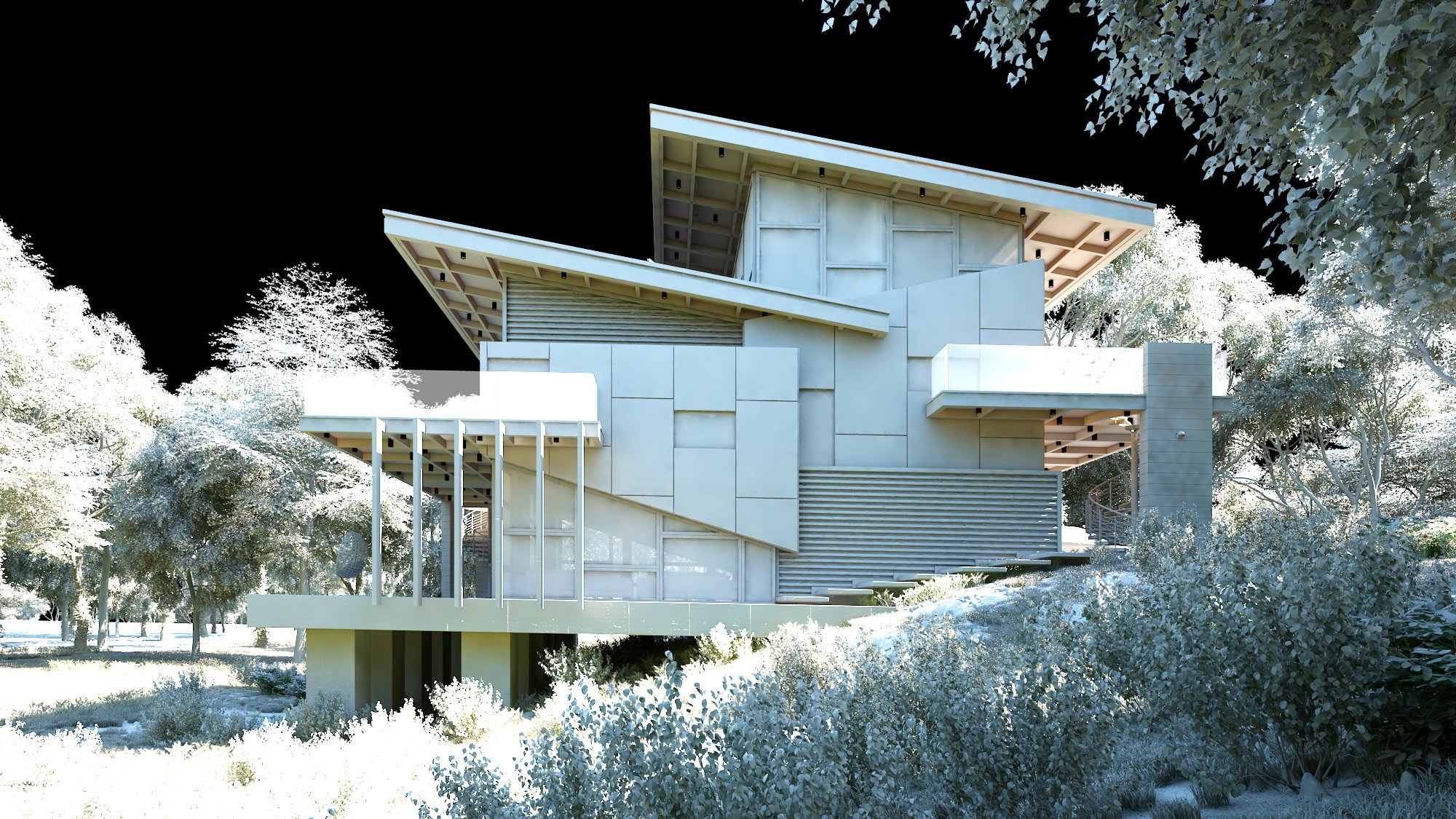
VRayRawTotalLighting
Click on image to enlarge 
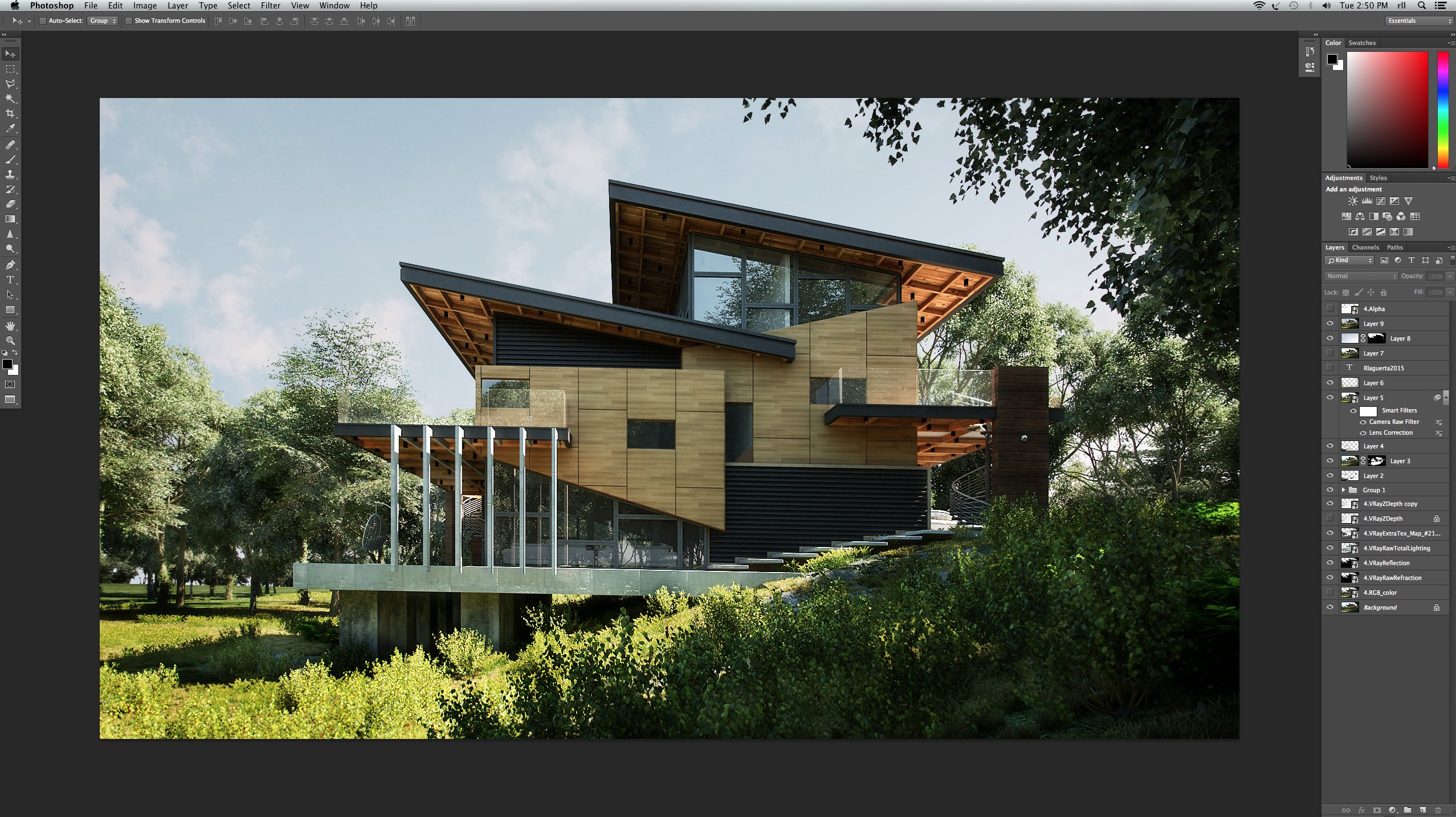
I used Photoshop to combine all the render elements to achieve the final result.
Click on image to enlarge 
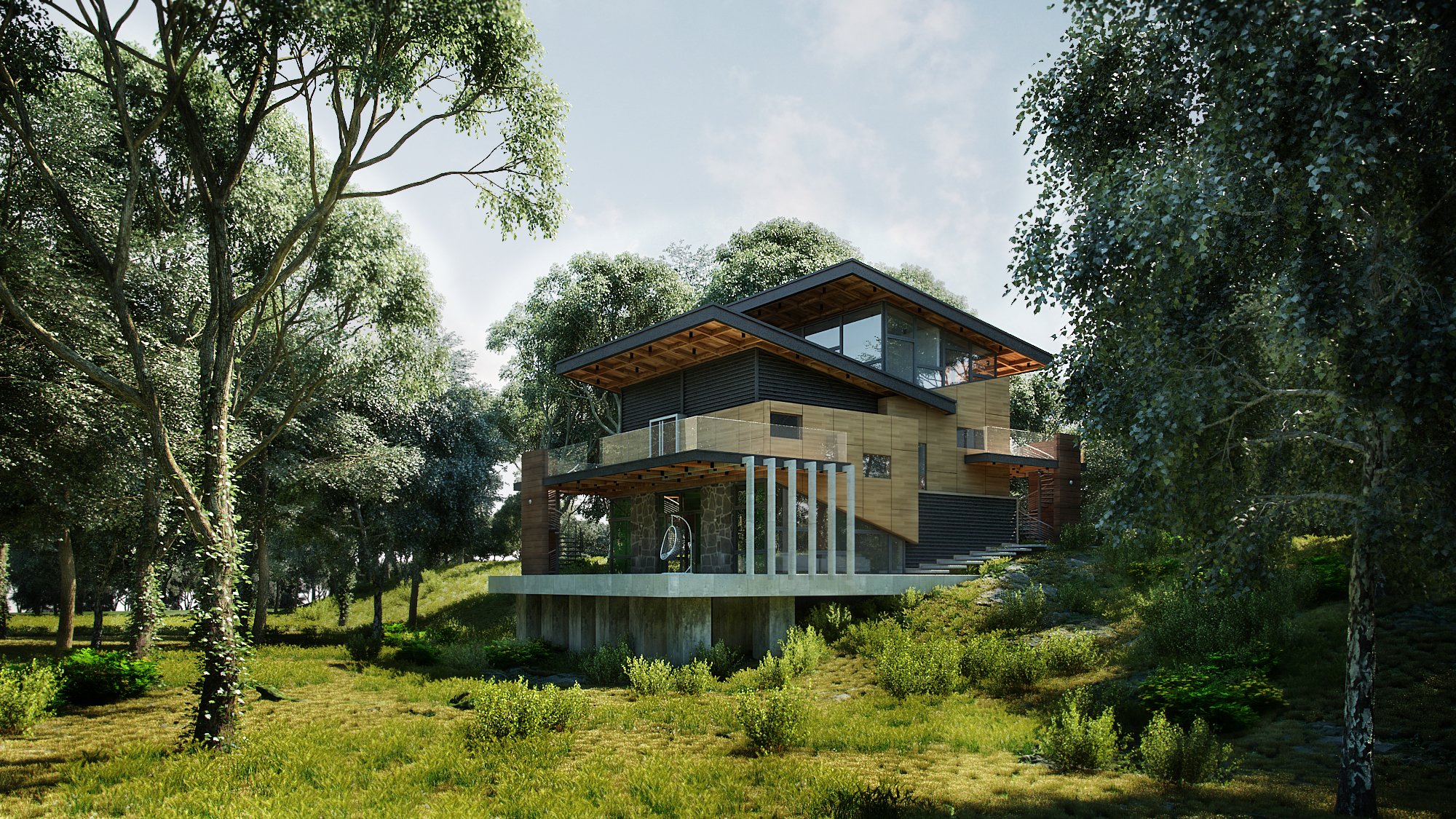
Additional View 1.
Click on image to enlarge 
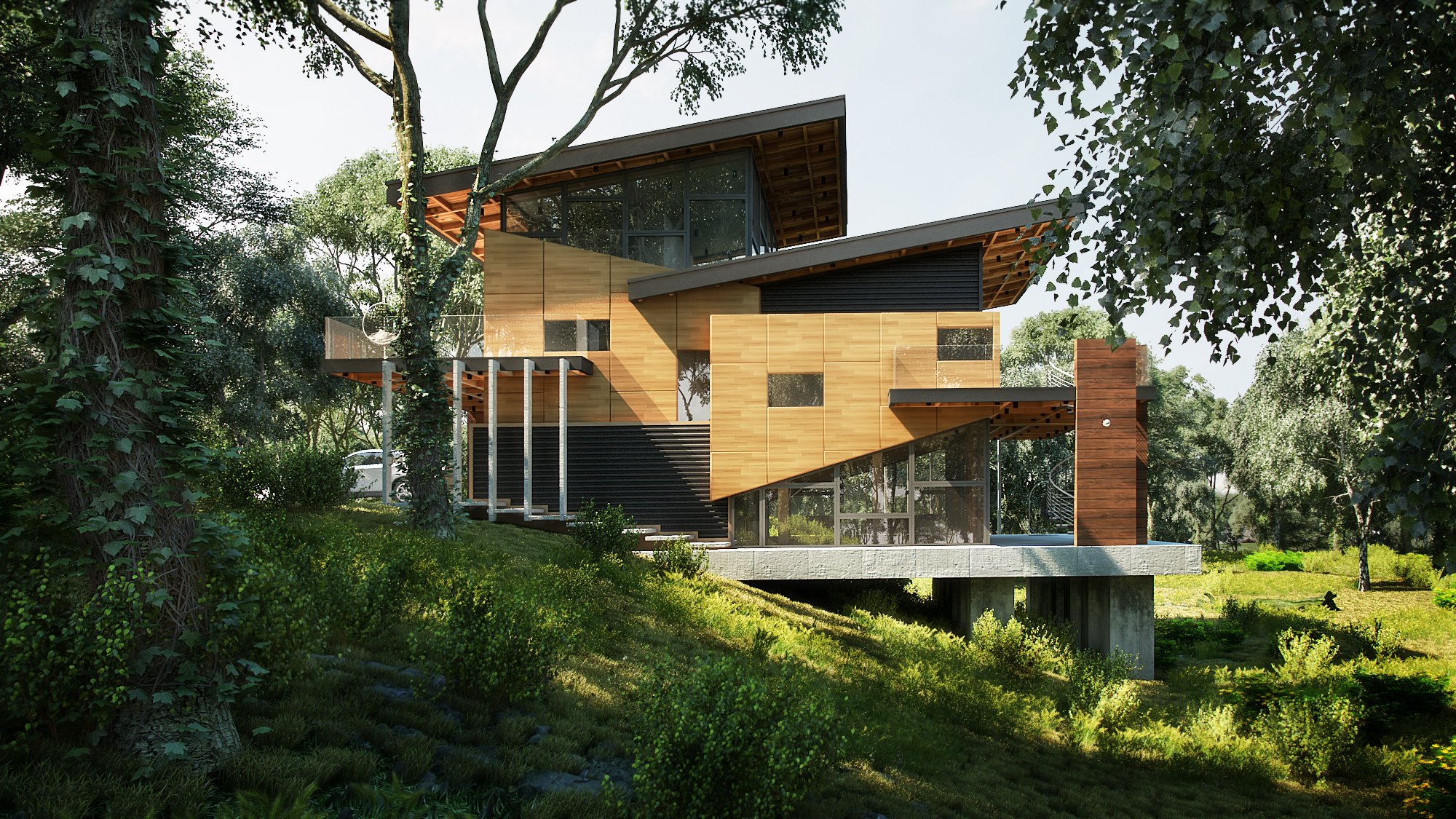
Additional View 2.
Click on image to enlarge
Final render again.
Thanks for reading! Hope you find this useful. I also want to thank Evermotion for giving me the opportunity to share this with you!
0 komentar:
Posting Komentar